

Quick Summary / Snapshot
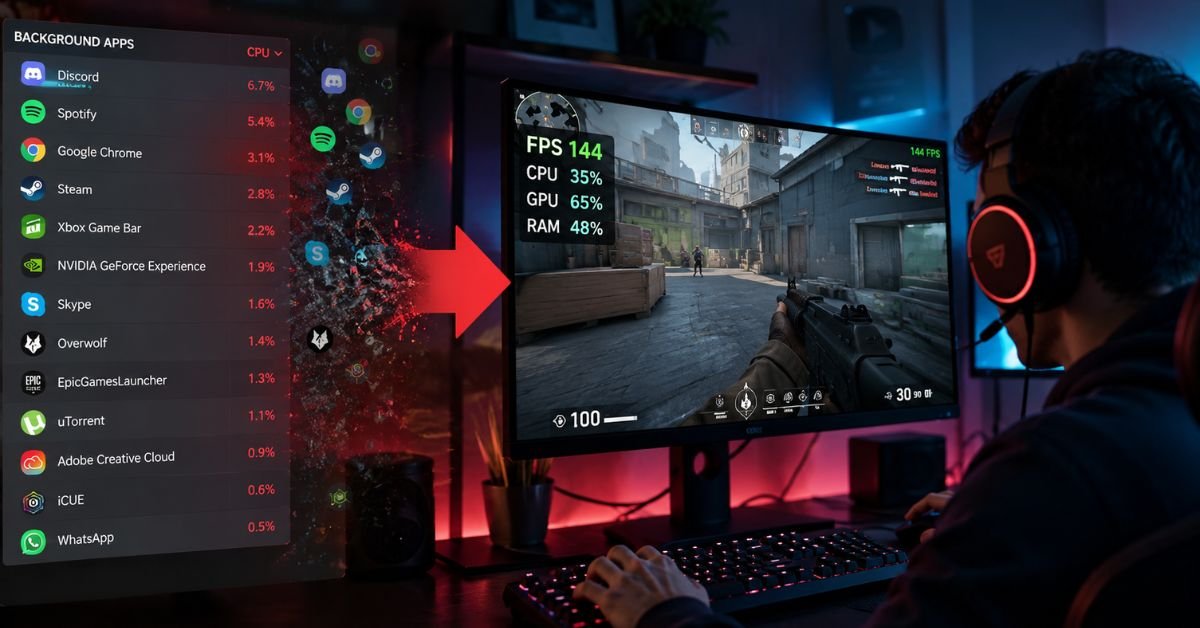
If your game suddenly starts lagging, stuttering, or losing FPS, background apps may be the hidden reason. Programs like browsers, cloud sync tools, game launchers, RGB software, and update services continue running even while you play. They use CPU, RAM, storage, and sometimes GPU resources, leaving fewer resources available for your game.
In this guide, you will learn how background apps reduce FPS, how to identify the biggest resource users, which apps are safe to close, and which Windows settings can help you achieve smoother gameplay without upgrading your hardware.
Introduction
How Background Apps Reduce FPS is something many gamers do not realize. Many gamers spend money on better graphics cards or more RAM, but they still experience FPS drops. Often, the actual cause of poor gaming performance is unnecessary software running in the background rather than the hardware itself. It is the number of background apps running silently while the game is open. Understanding how background apps reduce FPS can help you fix performance problems without spending anything.
Every background application competes with your game for system resources. Some apps constantly use CPU power, while others consume RAM, disk speed, or internet bandwidth. When too many processes run together, your computer has fewer resources available for your game. The result is lower FPS, random stuttering, longer loading times, and inconsistent gameplay. Learning how to manage these hidden processes is one of the easiest ways to improve gaming performance.
What Are Background Apps and Why Do They Affect FPS?
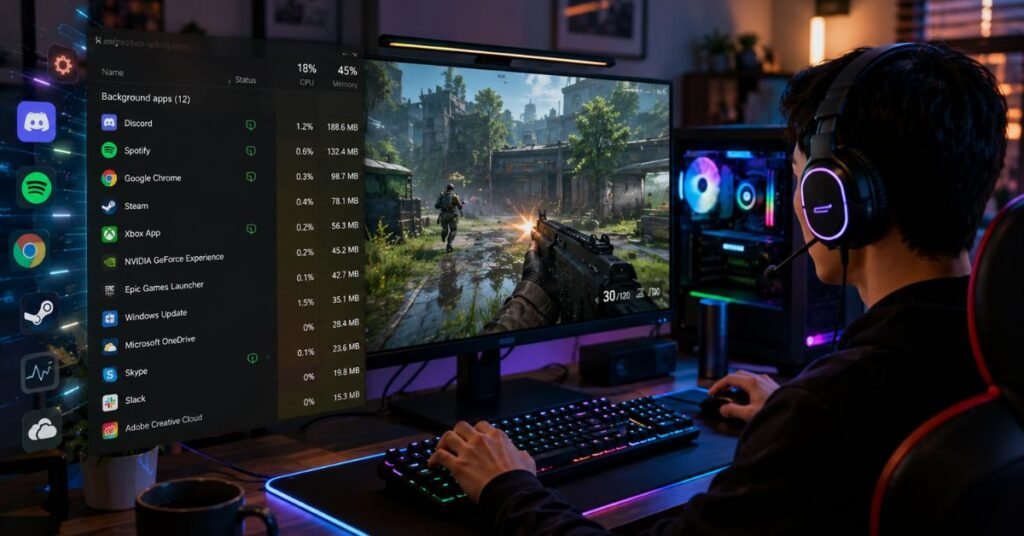
Background apps are programs that continue running even when you are not actively using them. Some start automatically with Windows, while others remain active after you close their main window. Although many of these applications perform useful tasks, they still consume valuable system resources. When you launch a game, these hidden processes continue working unless you manually stop them.
Modern games require a large amount of CPU power, RAM, GPU resources, and storage speed. If background apps are already using these resources, your game receives a smaller share, which directly affects frame rates and overall performance.
What Counts as a Background App?
Many gamers are surprised by how many programs continue running behind the scenes. Common examples include:
- Web browsers with multiple tabs open
- Discord running voice chat
- Steam or Epic Games Launcher downloads
- OneDrive or Google Drive syncing files
- Windows Update services
- RGB lighting software
- Antivirus background scans
- Adobe Creative Cloud
- Microsoft Teams
- Hardware monitoring applications
Even lightweight applications become a problem when several of them run together.
How Windows Shares System Resources
Windows automatically distributes hardware resources among all active programs.Windows allocates these resources across all active programs, whether they are open on your screen or running silently in the background.
The operating system shares:
- CPU for processing game calculations and background tasks
- RAM for storing active game data and running applications
- Storage for loading game files
- GPU resources for graphics rendering and hardware acceleration
When several background programs use system resources simultaneously, Windows shares the available CPU and memory across all active tasks instead of focusing on your game.
Why Games Lose Performance
Games perform best when they have uninterrupted access to system resources. Background apps reduce this availability by requesting processing time every few milliseconds.
This often causes:
- Lower average FPS
- Frequent FPS drops
- Micro stuttering
- Input delay
- Longer loading screens
- Higher CPU usage
- Increased RAM consumption
These issues become much more noticeable on systems with limited RAM or older processors.
How Background Apps Reduce FPS
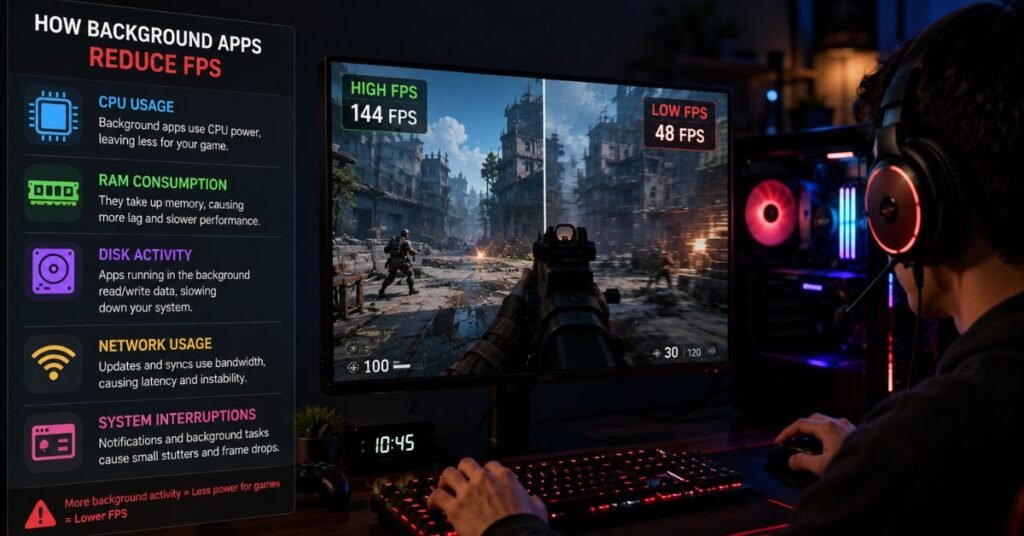
Understanding how background apps reduce FPS requires knowing how different hardware components work together during gaming. FPS is not controlled by the graphics card alone. The processor, memory, storage, and operating system all play important roles. When background apps consume these resources, game performance begins to suffer.
Some applications only use a small amount of power individually, but when several programs run simultaneously, their combined impact becomes significant. This is why many players notice smoother gameplay immediately after closing unnecessary background processes.
Increased CPU Usage
Every running application asks the processor to perform tasks. Even apps that appear idle continue checking for updates, syncing files, or monitoring hardware.
As CPU usage increases:
- Games receive less processing time.
- Physics calculations become slower.
- AI processing may lag.
- Frame generation becomes inconsistent.
The result is unstable FPS, especially in CPU-heavy games.
Higher RAM Consumption
Background applications occupy memory that your game could otherwise use.
When available RAM becomes limited:
- Windows starts using virtual memory.
- Loading speeds decrease.
- Texture streaming becomes slower.
- Games may stutter during intense scenes.
How Background Apps Reduce FPS Continued
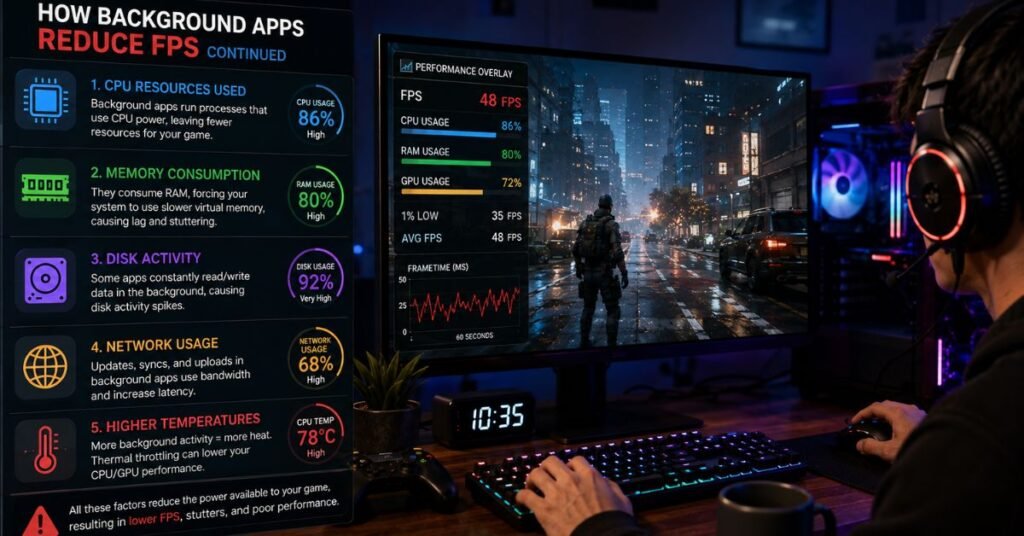
Background processes do more than use CPU and RAM. They also compete with your game for storage speed, graphics resources, and network activity. When several applications request hardware resources at the same time, your system cannot give full priority to the game. This results in lower frame rates, inconsistent frame times, and noticeable lag during gameplay.
Disk Usage Slows Game Loading
Modern games constantly read data from your SSD or HDD while you play. Maps, textures, sounds, and character models are loaded in real time. If another application is downloading files, syncing cloud storage, or installing updates, your storage drive becomes busy.
Common signs include:
- Longer loading screens
- Slow texture loading
- Delayed map rendering
- Random stutters while exploring large game worlds
- Slower game startup
Using an SSD helps improve loading speed, but unnecessary background disk activity can still reduce gaming performance.
GPU Resources Are Shared
Many gamers believe only games use the graphics card. In reality, browsers, streaming software, screen recorders, video players, and hardware monitoring tools also use GPU acceleration.
When several applications access the GPU together, you may notice:
- Lower average FPS
- Higher GPU usage
- Screen lag while multitasking
- Reduced rendering performance
- Less stable gameplay
Closing GPU-intensive background programs allows your graphics card to focus on rendering the game.
More Background Tasks Increase Frame Time
Average FPS is important, but frame time has an even bigger impact on how smooth a game feels. Background apps interrupt the normal flow of data, causing some frames to take longer to render.
Higher frame times can lead to:
- Micro stuttering
- Screen hitching
- Delayed player movement
- Inconsistent aiming
- Poor gaming experience despite acceptable FPS
A stable frame time often feels smoother than a system with high but unstable FPS.
Signs That Background Apps Are Hurting Gaming Performance
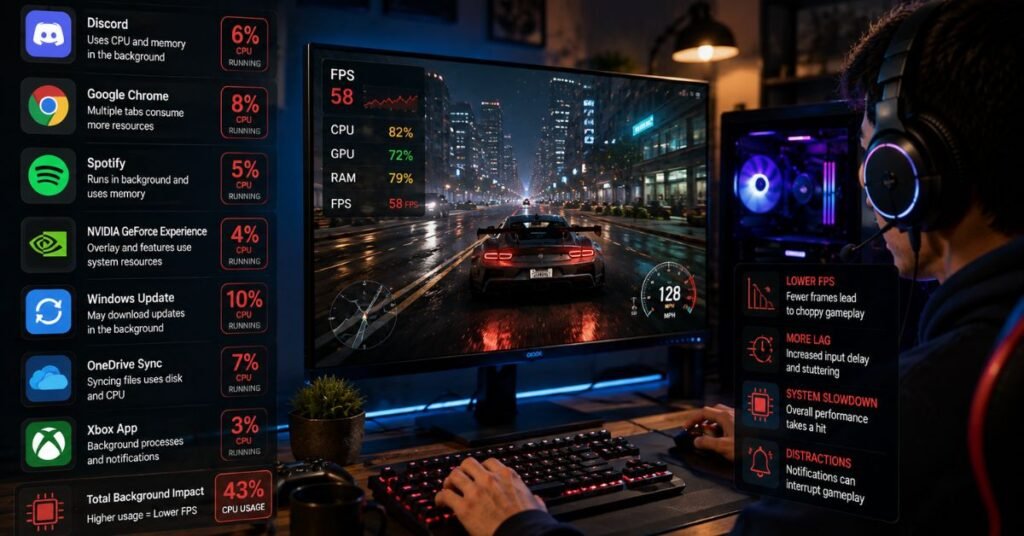
Not every FPS issue is caused by weak hardware. Sometimes the real problem is hidden software running in the background. Learning these warning signs helps you identify the issue before upgrading your PC.
FPS Drops Without Changing Graphics Settings
If your game normally runs well but suddenly loses FPS after opening several programs, background apps are likely consuming system resources.
Watch for:
- FPS dropping after browsing the internet
- Performance decreasing after opening Discord
- Lower FPS while downloads are active
- Games slowing after Windows updates begin
Random Stuttering During Gameplay
Your game may run smoothly for several minutes before freezing for a second. This usually happens when another application suddenly requests CPU time or starts reading files from storage.
Common causes include:
- Antivirus scans
- Cloud synchronization
- Automatic updates
- Background backups
- Software notifications
Longer Loading Screens
Games load levels much faster when storage devices are free. If loading suddenly becomes slower, another application may be accessing the drive.
Possible causes include:
- Steam downloading updates
- OneDrive syncing files
- Windows indexing
- Backup software
- Video recording applications
- High CPU Temperatures Without Heavy Gaming
Background applications increase processor workload even before the game starts.
You may notice:
- CPU fan spinning faster
- Higher idle temperatures
- Increased power consumption
- Reduced boost clock speeds
- Lower gaming performance because of thermal throttling
Input Delay and Unresponsive Controls
When CPU resources are overloaded, the game processes keyboard and mouse input more slowly.
Symptoms include:
- Delayed shooting
- Slow movement response
- Mouse lag
- Keyboard delay
- Inconsistent aiming
Competitive gamers notice these problems more quickly because every millisecond matters.
How to Check Which Background Apps Are Using Resources
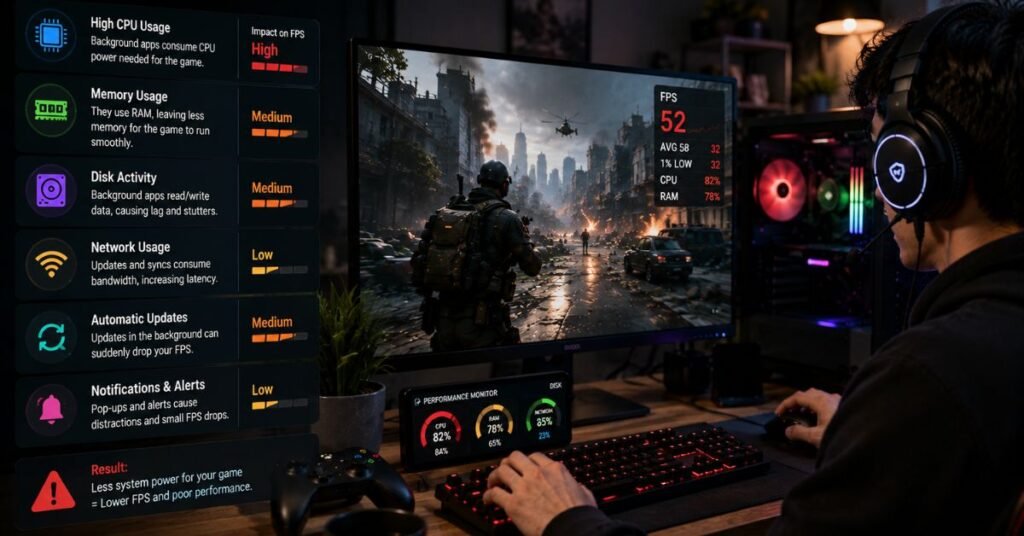
Before closing applications, identify which ones consume the most hardware resources. Windows includes several built in tools that make this easy.
Use Task Manager
Task Manager provides a quick overview of running processes.
Check:
- CPU usage
- Memory usage
- Disk activity
- GPU usage
- Power consumption
Sort each column to find the apps using the most resources.
Open Resource Monitor
Resource Monitor provides more detailed information than Task Manager.
It helps you monitor:
- Active CPU processes
- Disk read and write activity
- Memory allocation
- Network traffic
- Background services affecting performance
This tool is useful when the Task Manager does not clearly show the problem.
Monitor Performance with Xbox Game Bar
Windows Game Bar allows you to monitor gaming performance without leaving your game.
It displays:
- FPS
- CPU usage
- GPU usage
- RAM consumption
- VRAM usage
Watching these values while gaming helps identify which hardware component is reaching its limit.
Use MSI Afterburner for Advanced Monitoring
MSI Afterburner is one of the most popular performance monitoring tools for PC gamers.
It can display:
- Real-time FPS
- CPU temperature
- GPU temperature
- GPU clock speed
- Frame time
- RAM usage
- GPU usage
Monitoring these values during gameplay helps you understand whether background apps are causing performance loss or if another hardware limitation is responsible.
Best Background Apps to Close Before Gaming
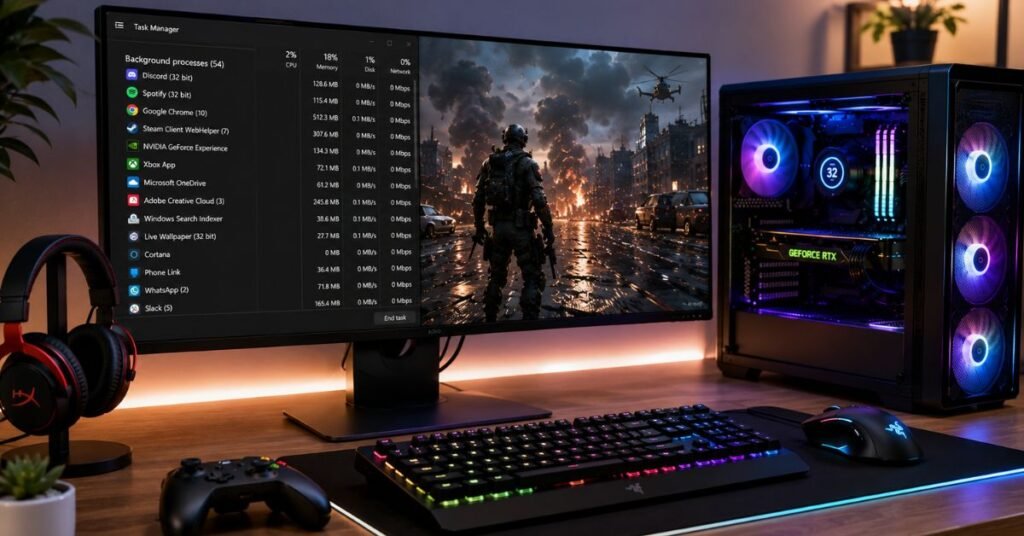
Closing unnecessary background applications before launching a game is one of the easiest ways to improve gaming performance. You do not need to stop every running process. Focus only on apps that consume CPU, RAM, storage, or GPU resources without helping your game.
Before closing any process, confirm that it is not a critical Windows system service. Closing the wrong process may affect system stability or interrupt important functions.
Cloud Sync Applications
Cloud storage programs constantly check for new files and upload or download data in the background. This activity uses your storage drive, CPU, RAM, and internet connection.
Apps you can close before gaming include:
- OneDrive
- Google Drive
- Dropbox
- iCloud Drive
If you are not actively syncing files, pause synchronization until your gaming session ends.
Web Browsers
Modern browsers are surprisingly resource-intensive. Each open tab uses memory, and many websites continue running scripts even when you are not viewing them.
Before starting a game:
- Close unused browser tabs.
- Exit browsers completely if you no longer need them.
- Stop video streaming running in the background.
This frees up memory and reduces CPU usage immediately.
Creative Software
Design and editing applications continue running background services after you close a project.
Examples include:
- Adobe Creative Cloud
- Photoshop
- Premiere Pro
- After Effects
- Canva Desktop
These programs may check for updates, synchronize files, or cache data while you play.
RGB Lighting Software
RGB control software looks lightweight but often runs several background services.
Examples include:
- ASUS Aura Sync
- MSI Center
- Corsair iCUE
- Razer Synapse
- Logitech G HUB
If you do not need lighting customization during gameplay, closing these applications can reduce unnecessary CPU usage.
Game Launcher Downloads
Game launchers sometimes continue downloading updates while you are playing another game.
Check for active downloads in:
- Steam
- Epic Games Launcher
- Ubisoft Connect
- EA App
- Battle.net
Pausing downloads before gaming helps reduce disk usage and network activity.
Communication Apps
If you are not using voice chat during gameplay, close any communication apps that are running in the background to free up system resources.
Examples include:
- Microsoft Teams
- Skype
- Zoom
- Slack
If you need Discord for voice chat, keep only Discord open and close other communication apps.
Background Apps You Should Never Disable
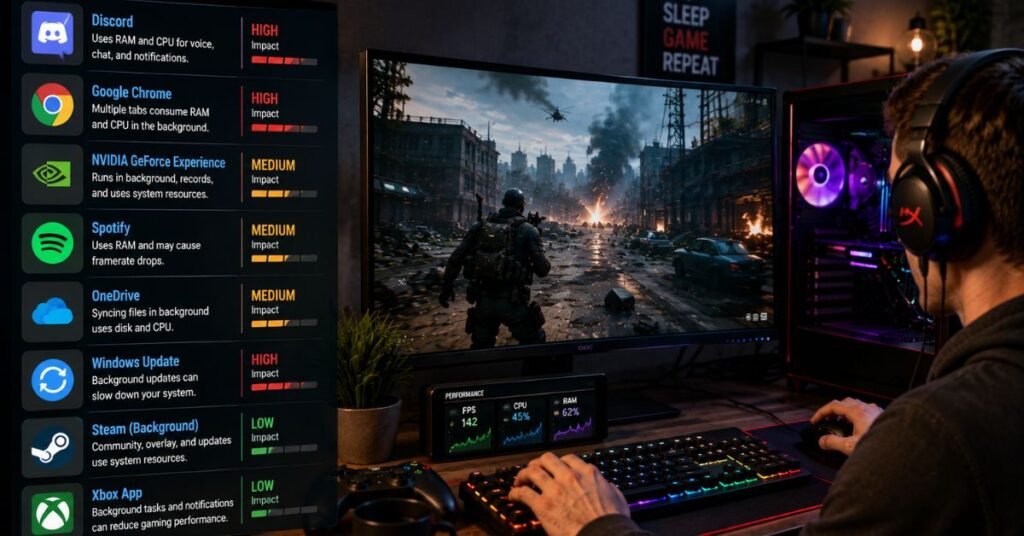
Many optimization guides recommend closing every running process. This is not a safe approach. Some Windows services are essential for security, hardware communication, and stable gameplay.
Avoid disabling the following.
Windows Security
Windows Security protects your computer from malware and harmful software. Disabling it completely for a small FPS gain is not worth the security risk.
Keep:
- Microsoft Defender
- Windows Security Service
- Firewall services
Graphics Driver Services
Your graphics card depends on driver services for proper performance.
Do not disable services related to:
- NVIDIA
- AMD
- Intel Graphics
Stopping these services can cause crashes, display issues, or reduced GPU performance.
Audio Services
Games rely on Windows audio services for sound output.
Never disable:
- Windows Audio
- Audio Endpoint Builder
- Driver audio services
Otherwise, you may lose in game sound completely.
Network Services
Online games require stable networking services.
Avoid stopping services responsible for:
- Internet connectivity
- Wi-Fi
- Ethernet
- DNS
- Network authentication
Turning these off may cause you to lose connection to online multiplayer games.
Essential Windows Services
Several Windows services manage memory, storage, user accounts, and hardware communication.
These services should remain active because they help Windows operate correctly.
If you are unsure about a service, leave it enabled instead of risking system instability.
Startup Apps vs Background Apps
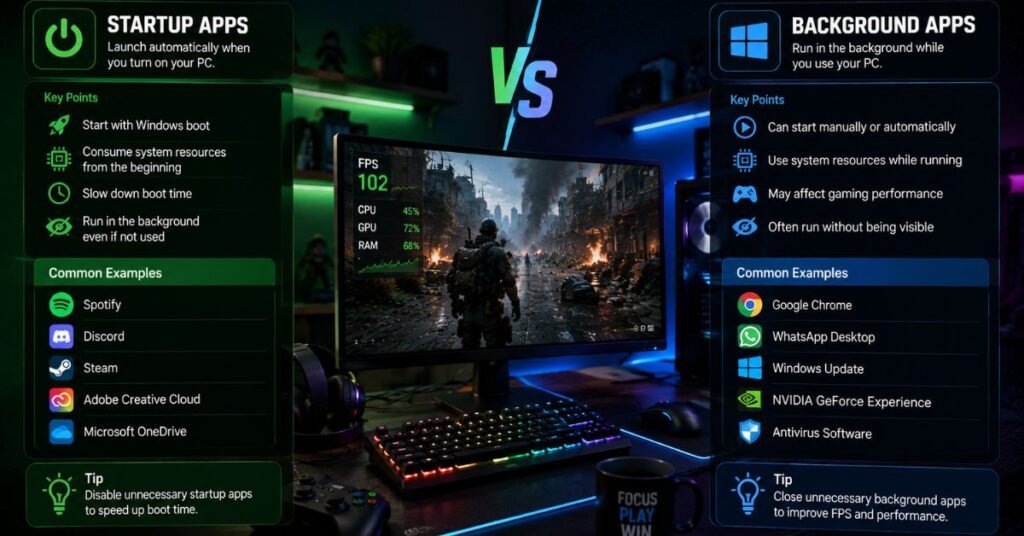
Many users think startup apps and background apps are the same, but they are different. Startup apps launch automatically when Windows starts, while background apps are programs that continue running after Windows has loaded.
Understanding this difference helps you optimize your PC more effectively.
| Feature | Startup Apps | Background Apps |
| Start with Windows | Yes | Not always |
| Run automatically | Yes | Depends on the application |
| Consume system resources | Yes | Yes |
| Can reduce FPS | Yes | Yes |
| Easy to disable | Yes | Usually yes |
| Affect boot speed | Yes | No |
| Affect gaming performance | Yes | Yes |
Reducing unnecessary startup apps also lowers the number of background processes running later.
Best Windows Settings for Maximum FPS
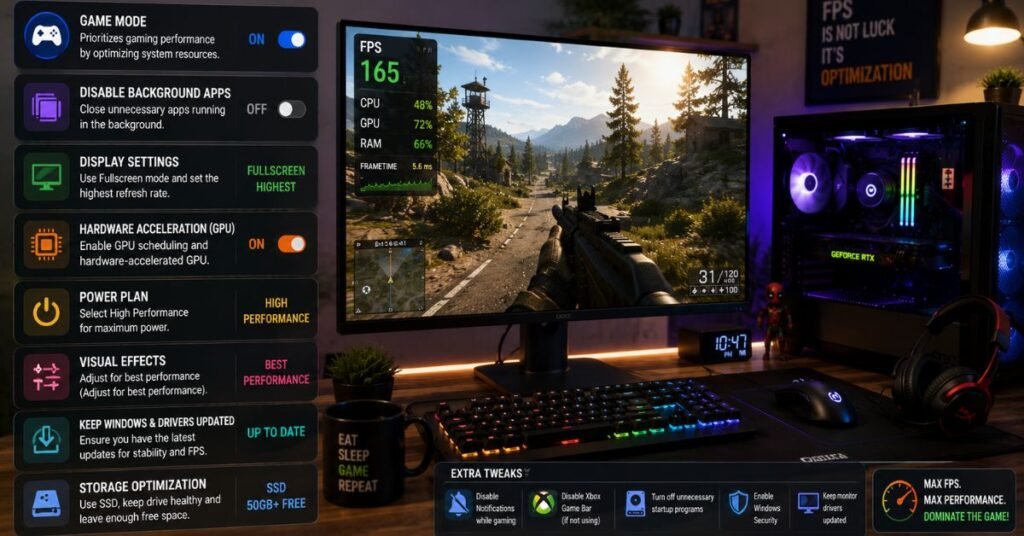
Windows includes several built-in settings that can improve gaming performance without installing third-party software. While these changes will not double your FPS, they can make gameplay smoother and more consistent.
Enable Game Mode
Game Mode gives higher priority to games by reducing unnecessary background activity.
Benefits include:
- Better CPU scheduling
- Fewer interruptions
- More stable FPS
- Improved gaming experience
Use the High Performance Power Plan
Balanced mode saves electricity but may reduce processor performance during demanding games.
High Performance mode helps by:
- Maintaining higher CPU clock speeds
- Improving responsiveness
- Reducing power-saving delays
- Delivering more consistent frame rates
Disable Unnecessary Startup Apps
Learn how background apps reduce FPS and discover simple ways to improve gaming performance.Open Startup Apps in Windows Settings and disable software that you rarely use.
Good candidates include:
- Music apps
- Chat applications
- Cloud storage software
- Game launchers
- Utility programs
Fewer startup apps mean fewer background processes every time you turn on your computer.
Turn On Hardware Accelerated GPU Scheduling
If your graphics card supports this feature, enabling Hardware-Accelerated GPU Scheduling may reduce rendering latency in supported games.
Potential benefits include:
- Lower input delay
- Better frame consistency
- Smoother gameplay
- Reduced GPU scheduling overhead
Keep Graphics Drivers Updated
Updated graphics drivers often include:
- Performance improvements
- Bug fixes
- Better game optimization
- Improved stability
- Support for new game releases
Updating drivers regularly helps your hardware perform at its best without requiring any upgrades.
Real Life Example: How Closing Background Apps Improved Gaming Performance
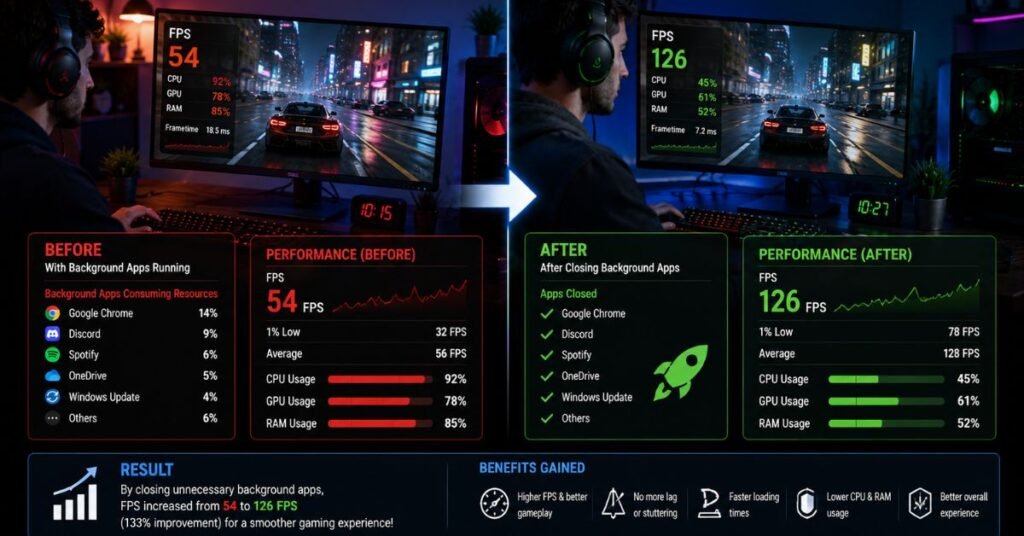
Many gamers think buying new hardware is the only way to increase FPS. However, small software changes can make a noticeable difference. The following example shows how background apps can affect gaming performance.
A player was using a gaming PC with an Intel Core i5 processor, 16 GB RAM, an NVIDIA RTX 3060 graphics card, and Windows 11. While playing Valorant, the game usually delivered around 170 FPS. However, random stutters and sudden FPS drops still occurred during competitive matches.
After checking the Task Manager, several background applications were running at the same time. Chrome had multiple tabs open, OneDrive was syncing files, Discord was using hardware acceleration, Steam was downloading updates, and RGB control software was active.
Once these unnecessary applications were closed, the results were noticeable.
| Before Optimization | After Optimization |
| Average FPS: 170 | Average FPS: 188 |
| Random FPS Drops | Stable Frame Rate |
| CPU Usage: 88% | CPU Usage: 69% |
| RAM Usage: 13.4 GB | RAM Usage: 9.8 GB |
| Frequent Stuttering | Smooth Gameplay |
| Longer Loading Time | Faster Loading |
Although the FPS increase was not extremely high, the gameplay became much smoother because frame times remained more consistent. This example shows that understanding How Background Apps Reduce FPS can help improve gaming performance without spending money on new hardware.
Common Mistakes Gamers Make
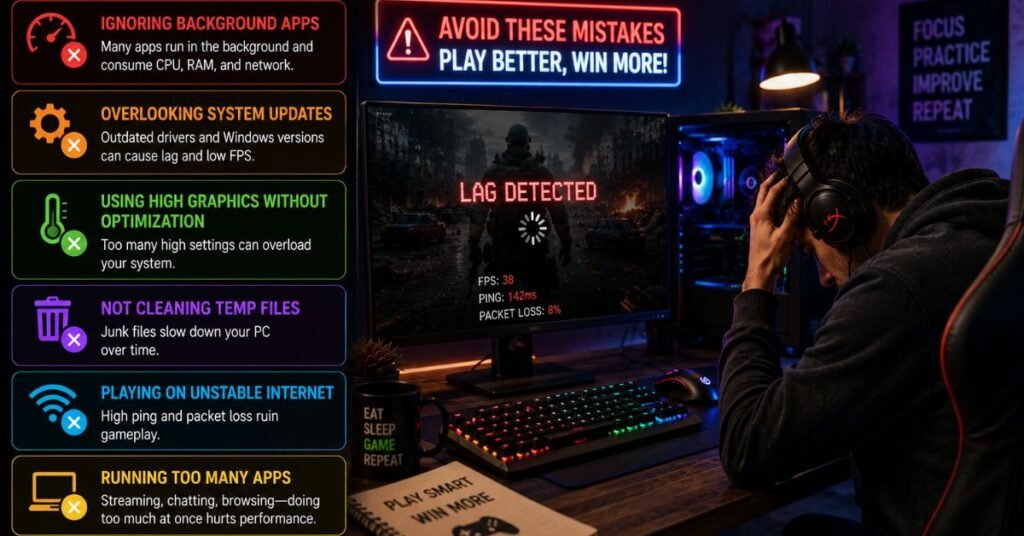
Many players try to improve FPS by following random advice found online. Some of these methods provide little benefit, while others can actually reduce system stability. Avoiding these common mistakes will help you optimize your PC safely.
Closing Every Windows Service
- Some Windows services are required for normal system operation.
- Disabling essential services may cause crashes or hardware problems.
- Close only unnecessary third-party applications.
Keeping Too Many Browser Tabs Open
- Every browser tab consumes RAM.
- Video streaming websites continue using CPU and GPU resources.
- Close unused tabs before launching a game.
Allowing Game Launchers to Download Updates
- Downloads increase disk usage.
- Network bandwidth is shared with the game.
- Pause updates until your gaming session is complete.
Ignoring Startup Applications
- Many programs launch automatically every time Windows starts.
- These apps continue running even if you never open them.
- Disable unnecessary startup programs regularly.
Running Multiple RGB Programs
- Several RGB utilities may monitor hardware continuously.
- Running more than one RGB application increases CPU usage.
- Use only one lighting control application whenever possible.
Forgetting to Restart the Computer
- Long system uptime leaves unnecessary background processes running.
- Restarting Windows clears temporary memory usage.
- A quick restart before gaming often improves overall performance.
Final Gaming Optimization Checklist
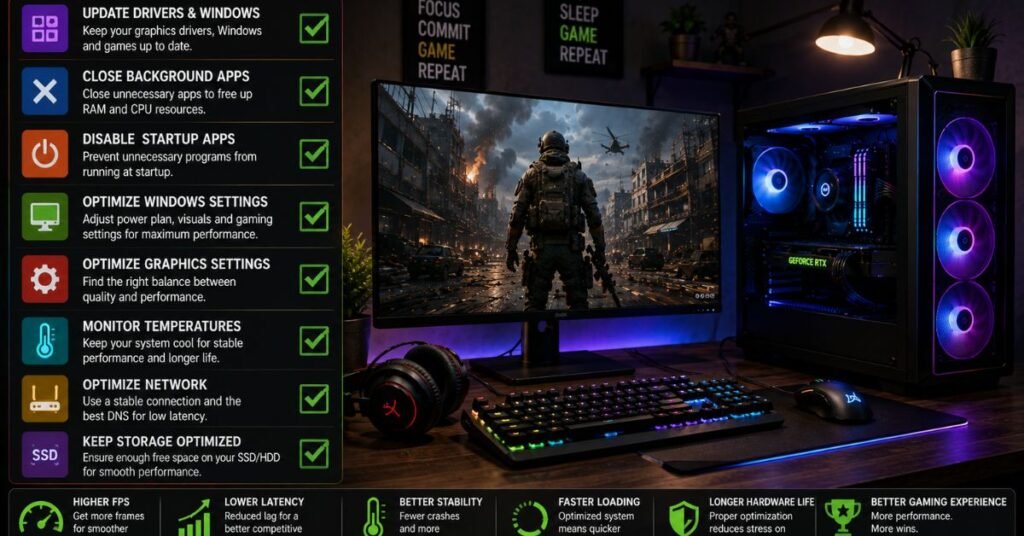
Before launching any game, use this checklist to make sure your PC is ready for the best possible performance.
| Task | Recommended |
| Close unnecessary browsers | ✅ Yes |
| Pause cloud synchronization | ✅ Yes |
| Stop launcher downloads | ✅ Yes |
| Enable Windows Game Mode | ✅ Yes |
| Select High Performance Power Plan | ✅ Yes |
| Update graphics drivers | ✅ Yes |
| Disable unnecessary startup apps | ✅ Yes |
| Keep enough free SSD space | ✅ Yes |
| Restart PC before long gaming sessions | ✅ Yes |
| Monitor CPU and RAM usage | ✅ Yes |
Following this simple checklist takes only a few minutes but can improve FPS stability and reduce stuttering during gameplay.
Disclaimer
The optimization methods shared in this guide are intended to improve gaming performance safely. Every computer is different, so results may vary depending on hardware specifications, installed software, and the games you play. Avoid disabling important Windows services or security features unless you fully understand their purpose.
Author Note
As someone who regularly researches PC optimization and gaming performance, I recommend checking your system resources before upgrading your hardware. In many situations, removing unnecessary background applications provides a smoother gaming experience without spending extra money. Small software optimizations often have a bigger impact than many gamers expect.
Conclusion
Background applications are one of the most common reasons behind unstable FPS, random stuttering, and increased system resource usage. While many of these programs perform useful tasks, they also compete with your games for CPU time, RAM, storage speed, and GPU resources. Learning How Background Apps Reduce FPS helps you identify hidden performance issues that many players overlook.
The good news is that improving gaming performance does not always require expensive hardware upgradesClosing unused background applications, reducing unnecessary startup processes, adjusting Windows performance settings, and keeping an eye on system resources can help deliver smoother gameplay with more stable FPS. A few simple changes before each gaming session can make your PC perform at its best.
(FAQs)
Do background apps always reduce FPS?
Not always. Lightweight applications have very little impact, but several resource-heavy apps running together can significantly lower FPS and cause stuttering.
Which background apps should I close before gaming?
Cloud storage apps, unnecessary browsers, update services, editing software, unused communication apps, and launcher downloads are usually safe to close before gaming.
Can background apps increase CPU usage?
Yes. Every running application uses processor time. Multiple background apps increase CPU usage and leave fewer resources available for your game.
Is 16 GB RAM enough for gaming with background apps?
For most modern games, 16 GB RAM is sufficient. However, keeping many background applications open can still reduce available memory and affect performance.
Should I disable Windows Security to improve FPS?
No. Windows Security protects your system from malware. Disabling it for a small performance gain is not recommended.
Does restarting my PC improve gaming performance?
Yes. Restarting clears temporary memory usage, stops unnecessary background processes, and provides a cleaner environment before launching games.
How often should I check background apps?
Checking the Task Manager before starting a gaming session is a good habit, especially if you notice FPS drops or system slowdowns.