

Quick Summary / Snapshot
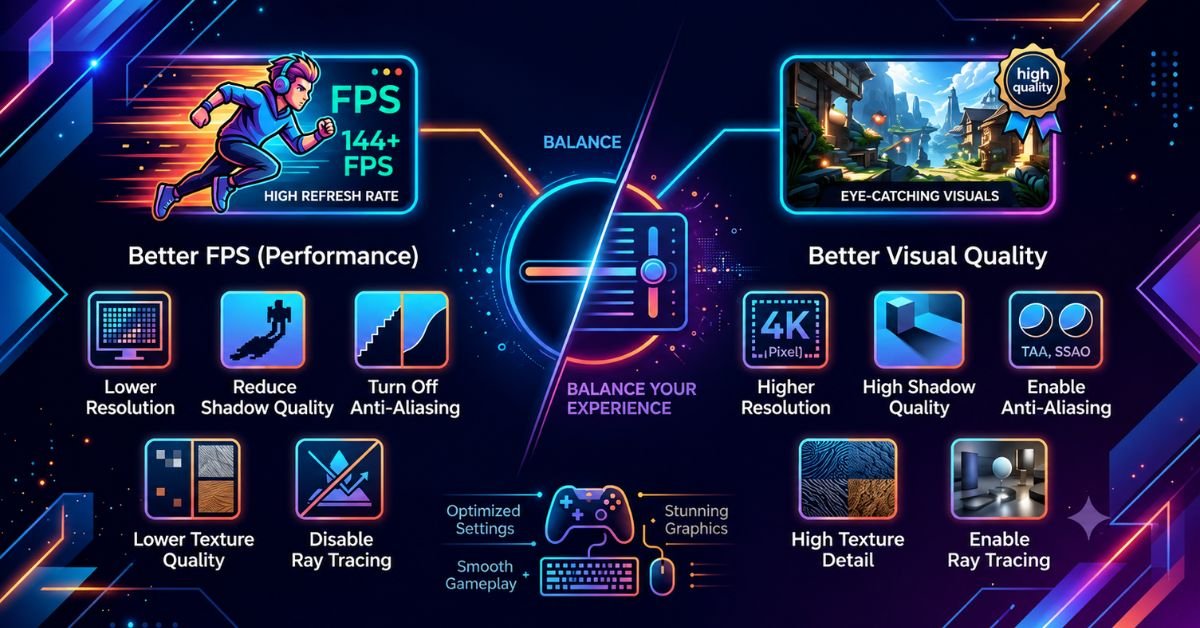
Choosing the right Gaming Graphics Settings can completely change your gaming experience. Good settings help you get higher FPS, smoother gameplay, lower input lag, and better image quality without upgrading your hardware. Many players simply select Ultra settings and wonder why their games stutter or overheat.
This guide explains every important graphics setting in simple English. You will learn what each option does, when to increase or lower it, and how to balance performance with visual quality. Whether you play competitive shooters or story-based games, these tips will help you enjoy smoother gaming.
Introduction
Every modern game gives players dozens of options to customize visuals and performance. These Gaming Graphics Settings control how your game looks and how smoothly it runs. A small change in one setting can increase FPS, reduce lag, or improve image quality.
Many gamers believe that selecting Ultra settings always gives the best experience. In reality, that is rarely true. The best Gaming Graphics Settings depend on your graphics card, processor, monitor resolution, and the type of game you play. Competitive players usually prefer higher FPS, while story driven gamers often choose better graphics.
If you understand what each graphics option does, you can improve performance without spending money on new hardware. This guide explains every important setting in simple language so you can confidently choose the right balance between visuals and speed.
What Are Gaming Graphics Settings?
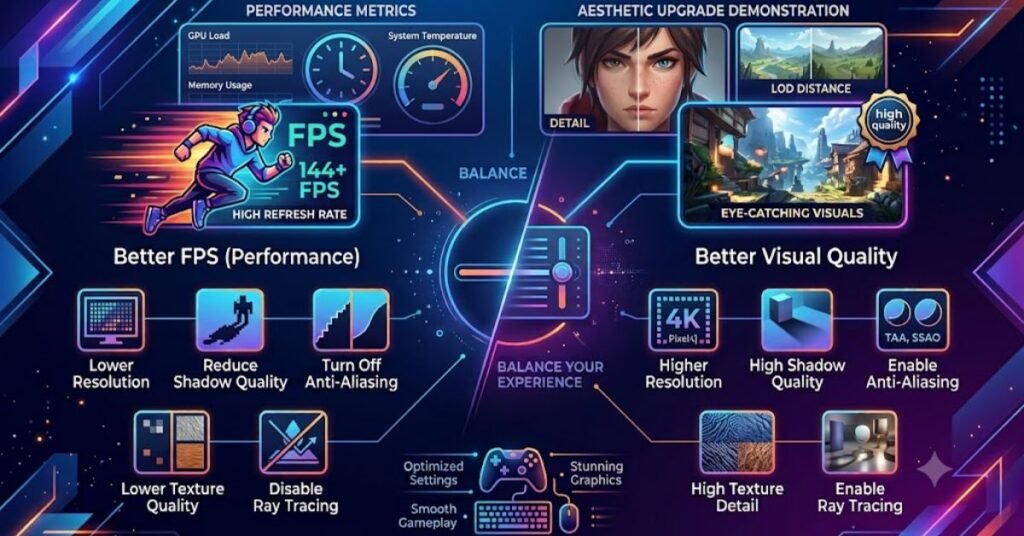
Gaming Graphics Settings are the options inside a game’s video menu that control how images are created and displayed on your screen. These settings decide the level of detail, lighting, shadows, reflections, textures, and many other visual effects.
Think of graphics settings as a control panel. Instead of changing computer hardware, they tell your graphics card how much work it should perform while rendering every frame. Higher settings usually make games look more realistic, but they also require more processing power.
Finding the right balance is important because every computer has different hardware. A setting that runs perfectly on one PC may reduce performance on another.
Why Every Game Includes Graphics Settings
Game developers know that players use different hardware. Some people play on entry-level gaming laptops, while others use powerful desktop PCs. Graphics settings allow everyone to adjust the game according to their system.
Instead of creating multiple versions of the same game, developers include flexible options so players can decide whether they want maximum image quality or maximum performance.
How Graphics Settings Affect Gameplay
Graphics settings do much more than improve visuals. They directly influence how responsive your game feels.
Lower settings often provide:
| Resolution | Image Quality | Performance Impact | Best For |
| 1280×720 | Basic | Very High FPS | Older PCs |
| 1920×1080 | Excellent Balance | Medium | Most Gamers |
| 2560×1440 | Very Sharp | Higher GPU Usage | Mid to High-End PCs |
| 3840×2160 (4K) | Maximum Detail | Very Demanding | High-End Gaming Systems |
- Higher frame rates
- Faster response time
- Reduced input lag
- Lower GPU temperature
- More stable gameplay
Higher settings usually provide:
- Better lighting
- Sharper textures
- More realistic environments
- Improved shadows
- Better reflections
The ideal choice depends on the type of game you play.
Performance vs Visual Quality
One of the biggest decisions every gamer makes is choosing between visual quality and performance.
If you mainly play competitive games, smoother gameplay is usually more valuable than beautiful graphics. Higher FPS helps improve aiming accuracy and reaction time.
For single player adventure games, slightly lower FPS may be acceptable if it allows you to enjoy detailed environments and cinematic visuals.
The goal is not to use the highest settings. The goal is to achieve stable performance while maintaining enjoyable graphics.
Understanding Resolution Before Changing Other Settings
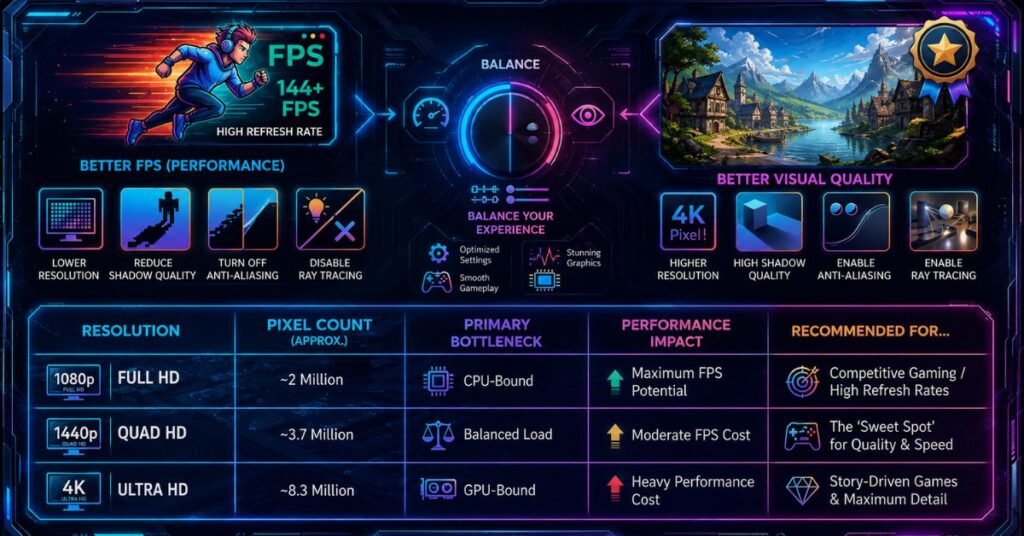
Resolution is one of the first options you should adjust because it affects both image clarity and system performance. It determines how many pixels your monitor displays while playing a game.
Higher resolutions create sharper images, but they also require the graphics card to process many more pixels every second.
For example:
| Resolution | Image Quality | Performance Impact | Best For |
| 1280×720 | Basic | Very High FPS | Older PCs |
| 1920×1080 | Excellent Balance | Medium | Most Gamers |
| 2560×1440 | Very Sharp | Higher GPU Usage | Mid to High-End PCs |
| 3840×2160 (4K) | Maximum Detail | Very Demanding | High-End Gaming Systems |
Native Resolution Matters
Every monitor has a native resolution. Running games at this resolution usually provides the clearest image.
Changing to a lower resolution may improve FPS but can also make text and objects appear less sharp.
Should You Lower Resolution for Better FPS?
If your game struggles to maintain smooth performance, lowering the resolution is often one of the fastest ways to increase FPS.
However, lowering multiple graphics settings first is usually a better choice because it keeps the image looking sharper while still improving performance.
Choosing the Right Resolution
The ideal resolution depends on your gaming hardware and personal preferences.
A practical approach is:
- Use 1080p for entry-level and mid range gaming PCs.
- Choose 1440p if your graphics card can maintain stable frame rates.
- Use 4K only when your GPU has enough power to deliver smooth gameplay.
By selecting the correct resolution first, adjusting the remaining Gaming Graphics Settings becomes much easier because you already know how much performance your system can provide.
Texture Quality Explained
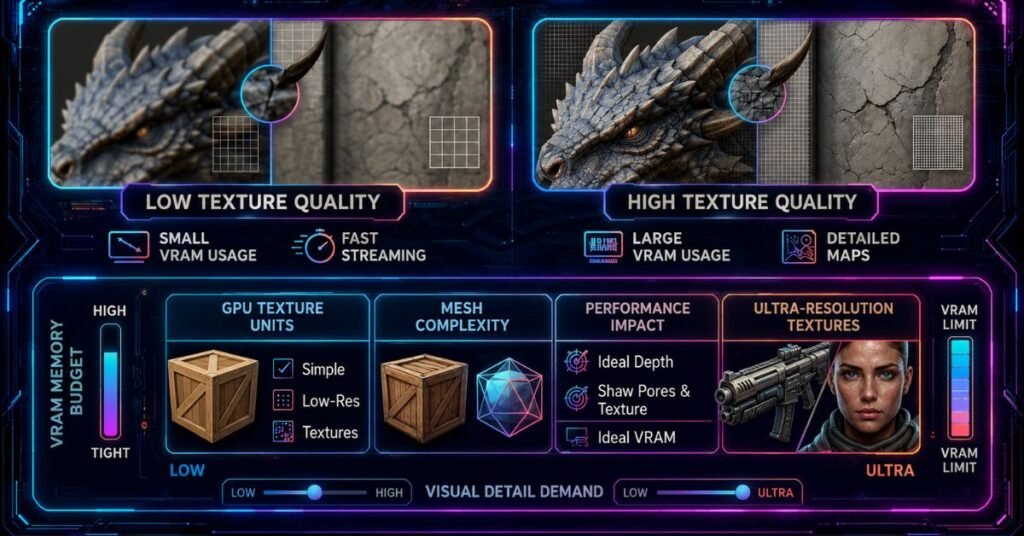
Texture Quality controls how detailed surfaces look inside a game. It affects walls, roads, buildings, clothes, weapons, trees, and almost every object you see. Good textures make a game feel more realistic, but they also use more graphics memory (VRAM).
Many players think Texture Quality always reduces FPS. In most cases, that is not true if your graphics card has enough VRAM. Problems usually start when your GPU runs out of memory. Then you may notice stuttering, slow loading textures, or sudden FPS drops.
The best approach is to choose the highest Texture Quality your graphics card can handle without causing performance issues.
Low Texture Quality
Low textures use less VRAM and load faster. They are suitable for older graphics cards or entry-level gaming laptops. However, objects may look blurry, especially when viewed up close.
Medium Texture Quality
Medium settings provide a balanced experience. They improve image quality while keeping VRAM usage under control. Most gamers with mid-range hardware can comfortably use this option.
High and Ultra Texture Quality
High and Ultra textures make surfaces look much sharper. Fine details become easier to notice, especially in open-world and story-based games. These settings work best when your graphics card has enough VRAM to support them.
Best Practice
If your game runs smoothly but textures appear blurry, increase Texture Quality first before changing other Gaming Graphics Settings.
Shadow Quality and Its Impact on FPS
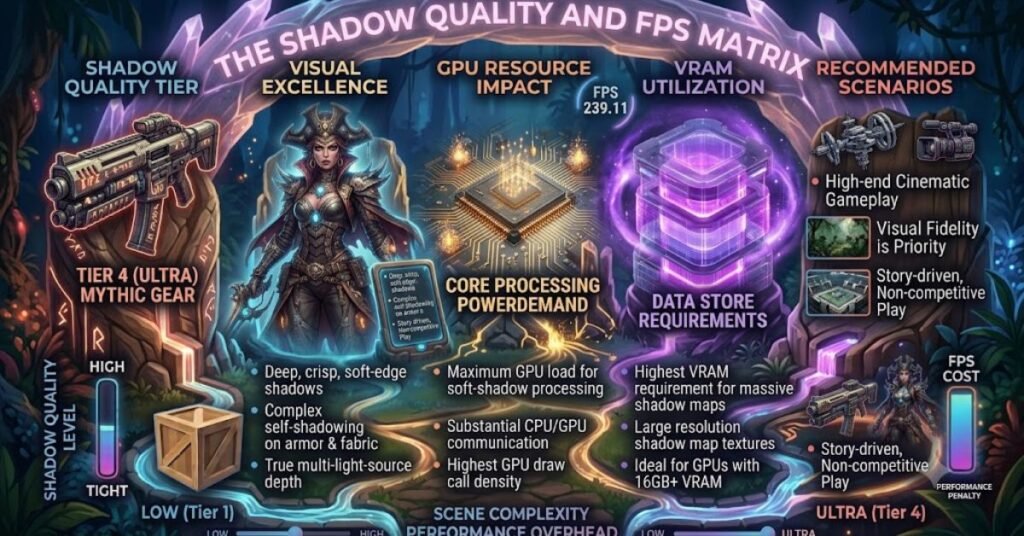
Shadow Quality is one of the most demanding Gaming Graphics Settings because the graphics card constantly calculates light direction and object movement.
Higher quality shadows make environments look more natural, but they can reduce FPS significantly.
Low Shadows
Low shadows improve FPS and reduce GPU workload. They are a good choice for competitive games where performance is more important than visual effects.
Medium Shadows
Medium shadows provide a realistic appearance while maintaining stable performance. This setting is recommended for most players.
High or Ultra Shadows
Ultra shadows create detailed edges and smoother lighting transitions. Although they look impressive, they often reduce performance more than expected.
Recommended Choice
If you need extra FPS, lowering Shadow Quality usually gives one of the biggest performance improvements without greatly affecting gameplay.
Gaming Graphics Settings: Anti-Aliasing Made Simple
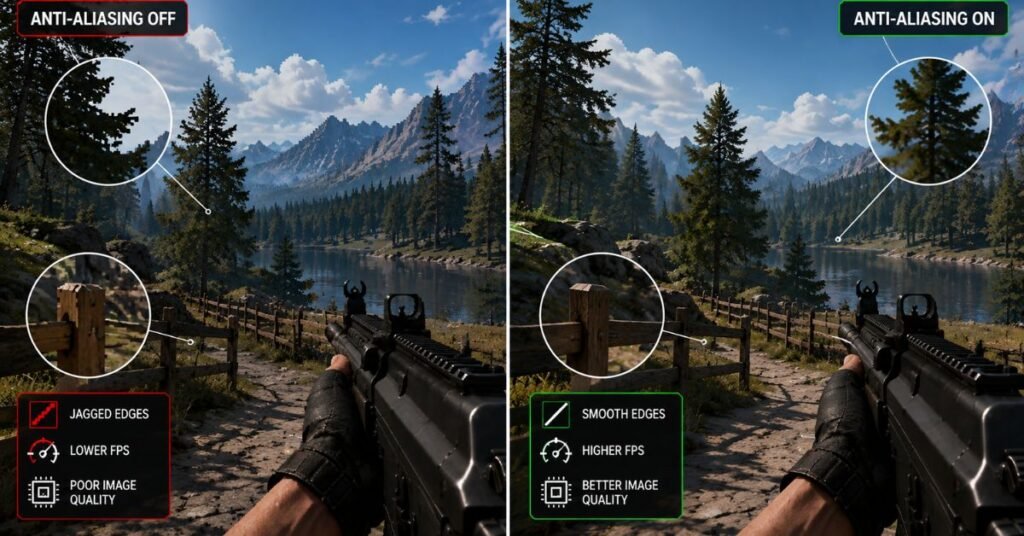
Jagged edges can make characters, buildings, and objects look rough. Anti-Aliasing smooths those edges to create cleaner images.
Different games use different Anti-Aliasing technologies, and each one has its own balance between image quality and performance.
FXAA
FXAA uses very little GPU power. It improves image smoothness but may slightly blur fine details.
TAA
Temporal Anti Aliasing offers better edge smoothing than FXAA. It is commonly used in modern games because it provides a good balance between visuals and performance.
MSAA
MSAA delivers excellent image quality but requires much more graphics power. Older games often include this option.
Which One Should You Choose?
For most players, TAA is the best choice. It offers good visual quality without causing a large FPS drop.
Understanding Ray Tracing
Ray Tracing changes how light behaves inside a game. Instead of using simple lighting tricks, it simulates realistic reflections, shadows, and global illumination.
Games with Ray Tracing often look much more realistic, but enabling it places a heavy load on the graphics card.
Advantages
- Better reflections
- More realistic lighting
- Improved shadows
- Higher visual quality
- Greater environmental detail
Disadvantages
- Lower FPS
- Higher GPU usage
- Increased power consumption
- More heat generation
Should You Enable It?
If your graphics card supports Ray Tracing and still delivers smooth performance, it can greatly improve visual quality. Otherwise, keeping it disabled is often the better choice.
DLSS, FSR, and XeSS Explained
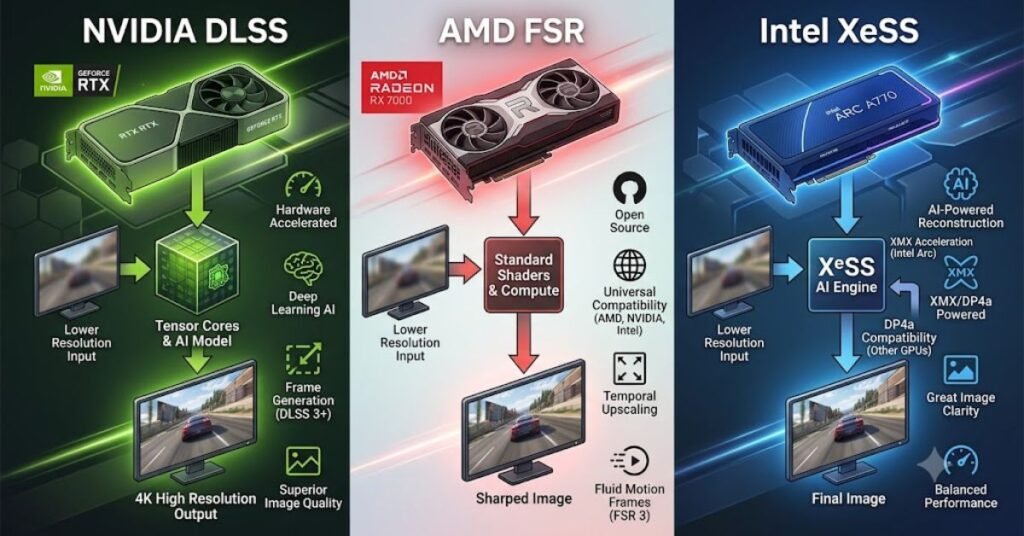
Modern upscaling technologies improve FPS by rendering games at a lower internal resolution and then rebuilding the final image using advanced algorithms.
These technologies have become some of the most useful Gaming Graphics Settings available today.
DLSS
Designed for supported NVIDIA graphics cards, DLSS provides excellent image quality while increasing FPS in many modern games.
FSR
FSR works on many different graphics cards. It offers noticeable performance improvements and is available in an increasing number of games.
XeSS
XeSS is another upscaling solution that improves performance while maintaining image quality on supported hardware.
Which Technology Is Best?
The best option depends on your graphics card. If your GPU supports one of these technologies, enabling it is usually one of the easiest ways to improve gaming performance without making the game look worse.
Real Life Example
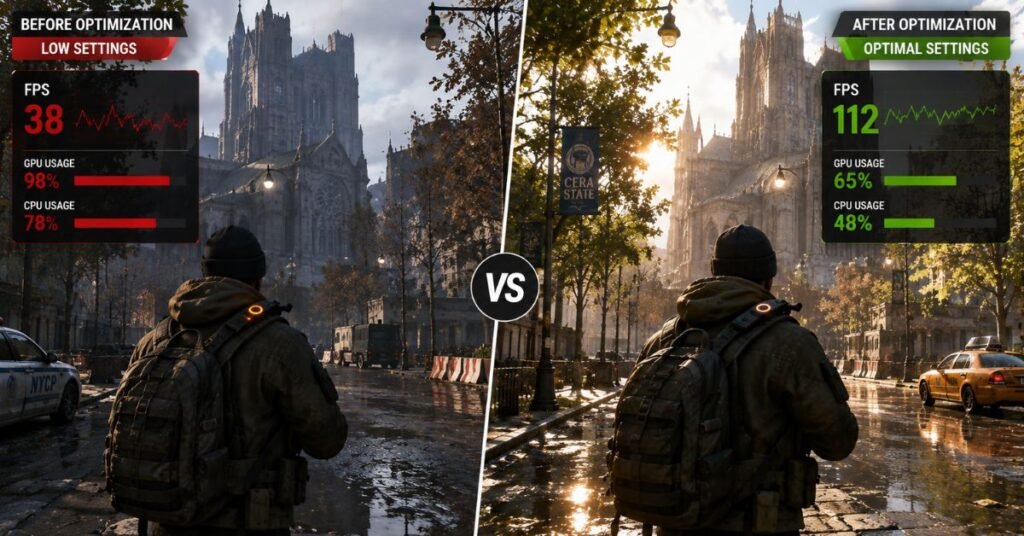
A gamer using a mid-range gaming PC was playing an open world action game at Ultra settings. The average FPS stayed around 45, causing occasional lag during busy scenes.
Instead of upgrading hardware, the player adjusted a few Gaming Graphics Settings. Shadow Quality was reduced from Ultra to Medium, Ray Tracing was disabled, and DLSS was enabled. Texture Quality remained on High because the graphics card had enough VRAM.
After these changes, the average FPS increased to around 80 while the game still looked detailed. Gameplay became smoother, loading felt faster, and the system produced less heat during long gaming sessions.
This example shows that smart graphics adjustments often provide better results than simply lowering every setting to Low.
Best Gaming Graphics Settings for Different Types of Games
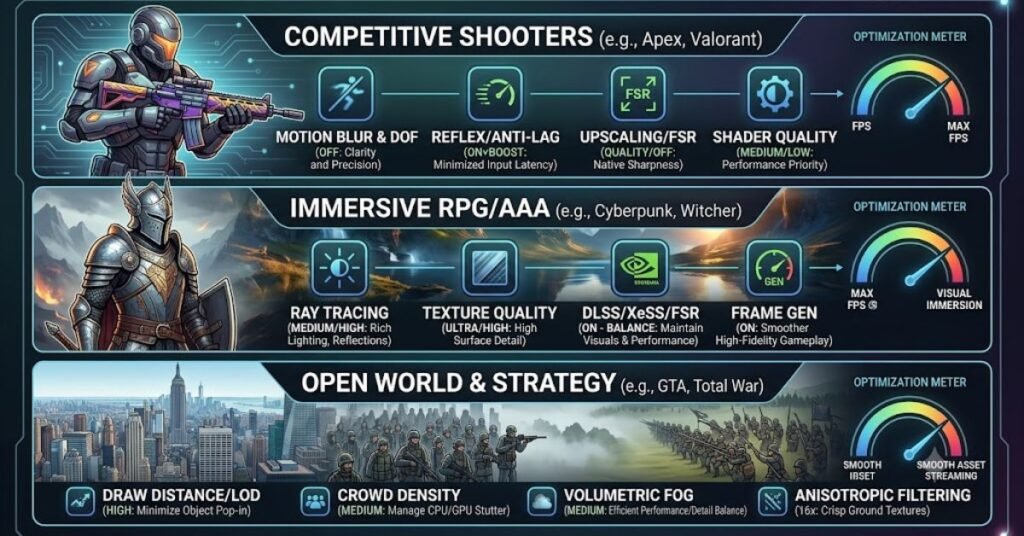
Not every game should use the same graphics settings. Fast-paced competitive games need high FPS and low input lag, while story-driven games focus more on visual quality. Choosing the right Gaming Graphics Settings based on the game genre gives a much better experience than simply selecting Low or Ultra presets.
Below are recommended settings for different types of games.
Competitive FPS Games
Games like tactical shooters and battle royale titles require quick reactions. Smooth gameplay is more important than beautiful graphics.
Recommended settings:
- Resolution: Native 1080p or 1440p
- Texture Quality: Medium
- Shadow Quality: Low
- Anti Aliasing: TAA or FXAA
- Motion Blur: Off
- V-Sync: Off
- Ray Tracing: Off
- Upscaling: Enable if available
These settings help maintain higher FPS and lower input delay.
Open World Adventure Games
Open-world games contain detailed environments, realistic lighting, and large maps. Image quality becomes more important while keeping gameplay smooth.
Recommended settings:
- Texture Quality: High
- Shadow Quality: Medium
- Ambient Occlusion: Medium
- Anti Aliasing: TAA
- Reflections: Medium
- Ray Tracing: Optional
- Upscaling: Balanced Mode
This combination delivers attractive visuals without placing unnecessary stress on the GPU.
Racing Games
Racing games demand stable frame rates because fast movement makes FPS drops more noticeable.
Recommended settings:
- High Texture Quality
- Medium Shadows
- Motion Blur: Personal preference
- Reflections: Medium
- Anti Aliasing: TAA
- DLSS/FSR/XeSS: Enabled if supported
- RPG and Story Games
Single player RPGs focus on exploration and graphics.
Recommended settings:
- High Textures
- High View Distance
- Medium Shadows
- High Effects Quality
- Medium Reflections
- Ray Tracing if FPS remains stable
Recommended Graphics Settings Comparison
The table below provides a balanced starting point for most modern gaming PCs.
| Setting | Competitive Gaming | Balanced Gaming | Visual Quality |
| Resolution | 1080p | 1440p | 4K |
| Texture Quality | Medium | High | Ultra |
| Shadow Quality | Low | Medium | High |
| Anti Aliasing | FXAA/TAA | TAA | MSAA/TAA |
| Motion Blur | Off | Off | On (Optional) |
| Ray Tracing | Off | Optional | On |
| V-Sync | Off | Optional | On |
| Upscaling | Performance | Balanced | Quality |
This setup works well for most players and provides a strong balance between performance and image quality.
Common Mistakes Players Make
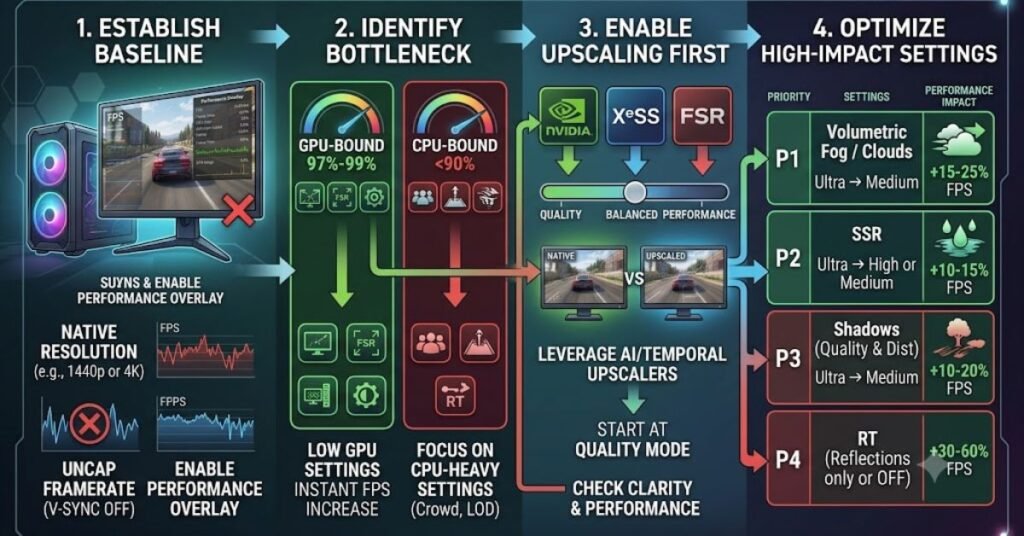
Many gamers accidentally reduce performance by choosing incorrect Gaming Graphics Settings. Avoiding these mistakes can improve FPS without upgrading your computer.
Using Ultra Settings for Every Game
Ultra settings often provide only small visual improvements while significantly reducing FPS.
Ignoring VRAM Limits
Running Ultra textures on a graphics card with limited VRAM can cause stuttering and long loading times.
Enabling Every Visual Effect
Motion Blur, Film Grain, Chromatic Aberration, and unnecessary visual effects may reduce clarity instead of improving the experience.
Never Updating Graphics Drivers
Old drivers can reduce performance and cause compatibility issues with new games.
Not Testing Individual Settings
Many players change every option at once. Instead, adjust one setting at a time and monitor FPS before making additional changes.
Expert Tips for Better Gaming Performance
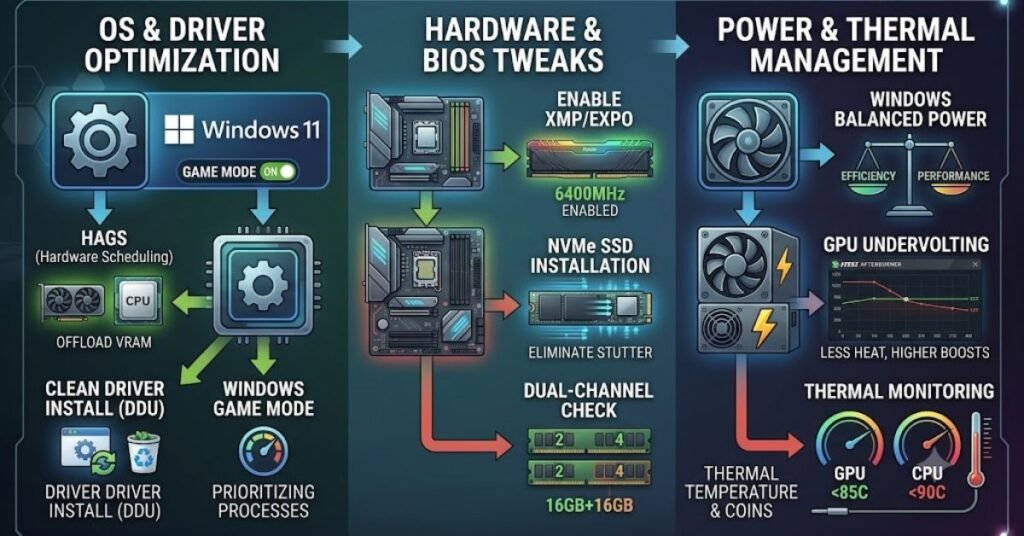
Small improvements can make a noticeable difference during gameplay.
- Keep graphics drivers updated.
- Close unnecessary background applications.
- Monitor CPU and GPU temperatures.
- Install games on an SSD.
- Enable Game Mode if available.
- Keep enough free storage space.
- Restart your PC before long gaming sessions.
- Test settings after every major game update.
How to Test Your Gaming Graphics Settings
After changing your Gaming Graphics Settings, do not assume the game is fully optimized. Testing helps you confirm that your changes actually improve performance instead of creating new problems.
Play the same game area for at least 10 to 15 minutes. This gives a better idea of real performance because FPS can change between different maps or scenes. Keep an eye on frame rate, GPU usage, CPU usage, and temperature while playing.
Monitor FPS
Use the built in FPS counter or your graphics software to monitor average FPS.
As a general guide:
- 30 FPS is playable for many story games.
- For most gamers, 60 FPS delivers a smooth and enjoyable gaming experience.
- 120 FPS or higher is ideal for competitive gaming.
- 144 FPS and above is best for high refresh-rate monitors.
Watch GPU Temperature
High graphics settings increase GPU workload. If temperatures become too high, performance may decrease.
Most gaming GPUs perform well between 65°C and 80°C during heavy gaming.
Check CPU Usage
Not every FPS problem comes from the graphics card. Certain games rely more on CPU performance than graphics power.
If CPU usage stays near 100% while GPU usage remains low, lowering graphics settings may not solve the problem.
Test One Setting at a Time
Avoid changing every option together.
Instead:
- Change one setting.
- Play for several minutes.
- Compare FPS.
- Keep the improvement if it helps.
This method helps identify which Gaming Graphics Settings have the biggest impact on your system.
Signs That Your Graphics Settings Need Adjustment
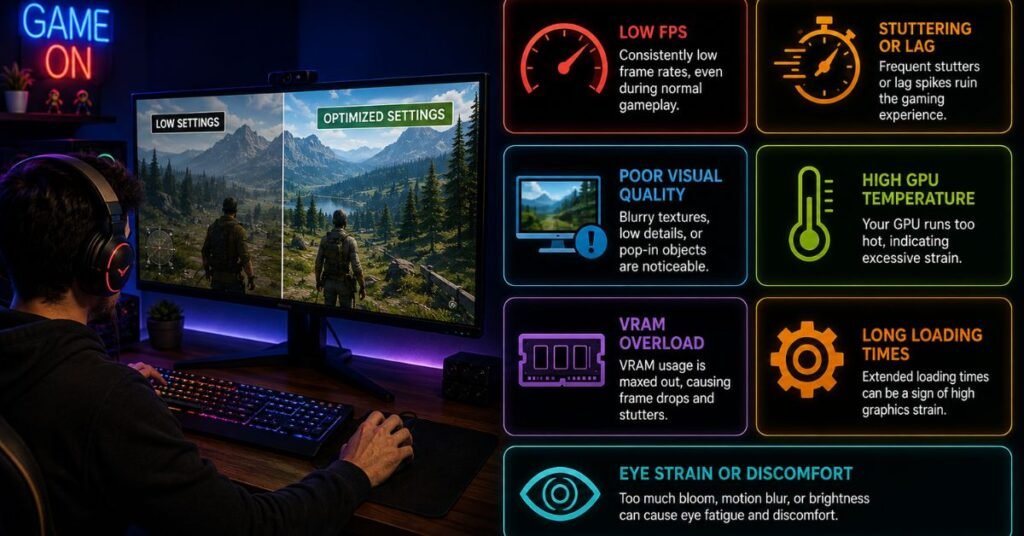
Many gamers continue playing even when their system clearly shows signs of incorrect settings.
Watch for these common symptoms.
Frequent FPS Drops
If FPS suddenly falls during combat or crowded areas, reduce demanding settings such as Shadows or Ray Tracing.
Screen Stuttering
Stuttering often happens because the graphics card is overloaded or VRAM is full.
Reducing Texture Quality or enabling DLSS/FSR may solve the issue.
High Fan Noise
If your fans constantly run at maximum speed, your GPU may be working harder than necessary.
Lowering a few demanding settings can reduce heat without making the game look much worse.
Input Delay
Slow response between mouse movement and gameplay can affect competitive performance.
Lower graphics settings and disable unnecessary visual effects to improve responsiveness.
Finding the Perfect Balance Between FPS and Visual Quality
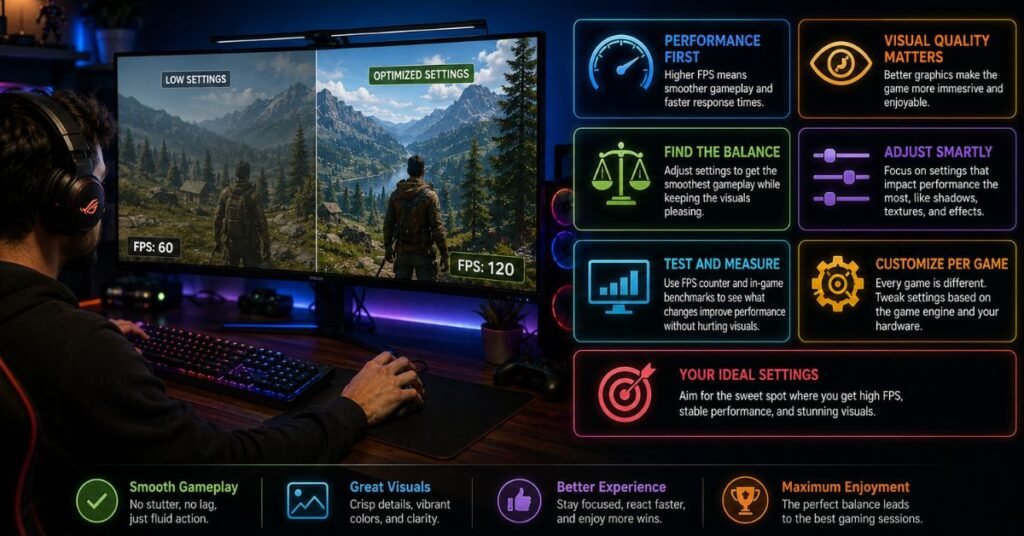
There is no universal graphics preset that works for everyone. The ideal Gaming Graphics Settings depend on your hardware, monitor, and gaming style.
Competitive players usually benefit from:
- Higher FPS
- Lower latency
- Reduced visual effects
Story-focused gamers often prefer:
- Better lighting
- Sharper textures
- Improved reflections
- Higher visual quality
A balanced setup gives you both enjoyable visuals and stable performance.
Rather than focusing on whether your PC can handle Ultra settings, aim for the best balance between performance and image quality. Ask yourself, “Which settings give me the smoothest experience while keeping the game beautiful?”
That mindset usually produces much better results.
Author Note
As someone who has tested different gaming hardware and graphics configurations, I have learned that the highest settings are rarely the best settings. A balanced approach always delivers a smoother and more enjoyable gaming experience.
Every gaming PC is different, so spend a few minutes testing your Gaming Graphics Settings instead of relying only on default presets. Small adjustments often provide surprisingly large improvements.
Disclaimer
This guide provides general educational information about Gaming Graphics Settings. Actual performance depends on your graphics card, processor, RAM, storage device, monitor resolution, and individual game optimization. Always test settings on your own system before making permanent changes.
Conclusion
Choosing the right Gaming Graphics Settings is one of the easiest ways to improve gaming performance without buying new hardware. Understanding how each setting affects FPS and image quality helps you create a smoother and more responsive gaming experience.
Instead of selecting the highest preset available, focus on finding the right balance between visuals and performance. Test each setting carefully, monitor your frame rate, and adjust according to the type of games you play. With the right configuration, you can enjoy stable FPS, better image quality, and a more enjoyable gaming experience for years to come.
(FAQs)
1. What are Gaming Graphics Settings?
Gaming Graphics Settings are the controls that determine how a game is displayed on your screen. They let you adjust options such as resolution, textures, shadows, lighting, and visual effects to match your PC’s capabilities. Choosing the right settings helps improve both image quality and overall gaming performance.
2. Which graphics setting has the biggest impact on FPS?
Settings like Shadow Quality, Resolution, Ray Tracing, and Reflections usually have the greatest effect on frame rates. Reducing these options can improve FPS, but the results vary depending on the game and your computer’s hardware. Testing each setting individually is the best way to find the right balance.
3. Is it necessary to play games on Ultra settings?
Not always. While Ultra settings can make games look more detailed, they also require more processing power and may lower FPS. For many gamers, Medium or High settings provide smooth performance while still delivering excellent visual quality.
4. Does higher resolution reduce gaming performance?
Yes. Higher resolutions require the graphics card to render more pixels, which increases GPU workload and can lower FPS, especially on entry-level hardware.
5. What is the best resolution for gaming?
For most gamers, 1920×1080 (1080p) offers the best balance between sharp visuals and smooth performance. Mid-range and high-end systems can also handle 1440p, while 4K is best suited for powerful gaming PCs.
6. Is Ray Tracing worth enabling?
Ray Tracing creates realistic lighting and reflections, but it also reduces FPS. If your graphics card supports it and still delivers smooth gameplay, it can improve visual quality. Otherwise, keeping it disabled is often the better option.
7. How often should I update my graphics settings?
Review your Gaming Graphics Settings after installing a new game, updating graphics drivers, upgrading hardware, or applying major game patches. These changes can affect both performance and image quality.