

Quick Summary / Snapshot
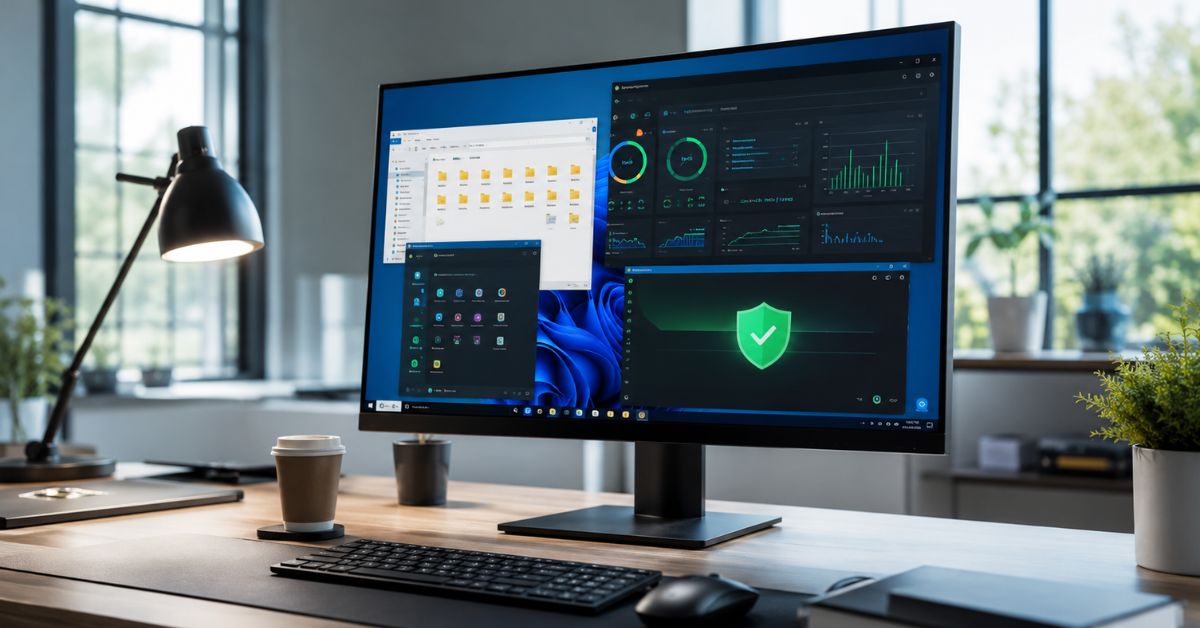
If you use a Windows computer every day, a few smart changes can make a big difference. This guide shares practical technology hacks for Windows users that help improve speed, increase security, organize files, save time, and solve common problems without installing unnecessary software. Whether you use your PC for work, study, gaming, or personal tasks, these tips can help you get more from your Windows device.
Introduction
Many people use Windows every day but only know a small number of its built-in features. Learning the right technology hacks for Windows users can help you complete tasks faster, protect your personal data, and improve your computer’s overall performance. Most of these tricks take only a few minutes to apply, yet they can save hours over time.
Windows includes many useful tools that often go unnoticed. From keyboard shortcuts and storage management to security settings and productivity features, these built in options help users work smarter instead of harder. This guide explains practical methods that anyone can follow, even without technical knowledge.
Unlike articles that simply list random tips, this guide explains why each hack matters, when to use it, and how it improves your daily experience. By the end, you will have a complete set of practical technology hacks for Windows users that you can start using immediately.
Why Smart Windows Hacks Matter
Many users think they need expensive software or hardware upgrades to improve computer performance. In reality, Windows already includes dozens of built in features that solve common problems. Learning these features helps you work more efficiently while reducing unnecessary frustration.
Using practical technology hacks for Windows users also improves digital safety. Small changes, such as enabling security options or managing startup programs, can reduce system slowdowns and lower security risks. Instead of relying on third-party applications, you can often achieve better results with the tools already available in Windows.
## Understand Your Windows System Before Applying Any Hack
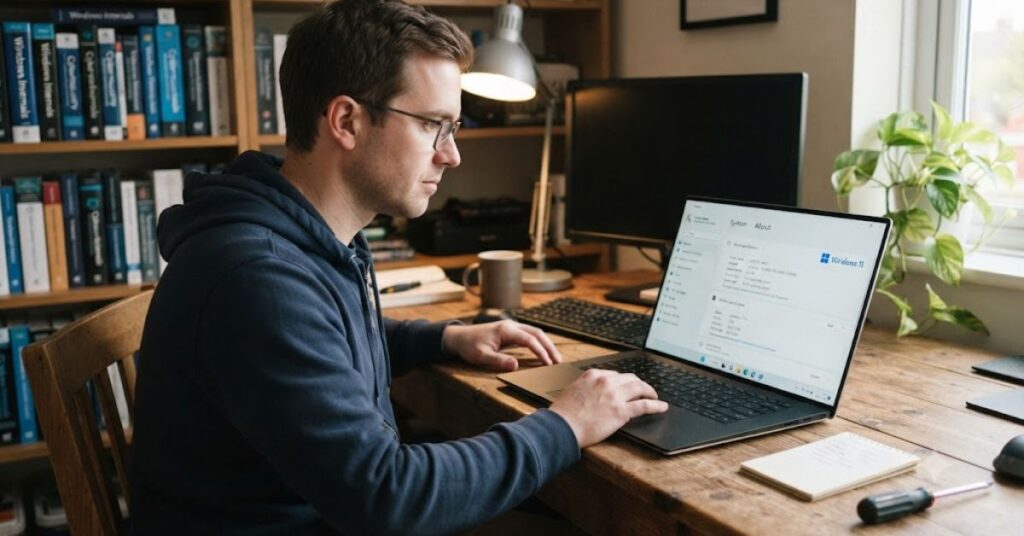
Before making changes, spend a few minutes understanding how your computer is currently performing. Every Windows PC has different hardware, storage capacity, and software requirements. Knowing your system helps you choose the right optimization methods instead of applying every tip blindly.
Some users experience slow startup times because too many programs launch automatically. Others run out of storage because temporary files accumulate over time. Identifying the real cause saves time and prevents unnecessary troubleshooting.
Check Your System Information
Start by reviewing your computer’s specifications.
Look at:
- Processor (CPU)
- Installed RAM
- Storage type (SSD or HDD)
- Available disk space
- Windows version
These details help you understand whether performance issues are caused by hardware limitations or software settings.
Use Task Manager to Find Performance Problems
Task Manager provides a quick overview of system performance.
Check:
- CPU usage
- Memory usage
- Disk activity
- Startup applications
- Background processes
If one application constantly uses high CPU or memory, closing or updating it may improve performance immediately.
Best Technology Hacks for Windows Users to Improve Everyday Productivity
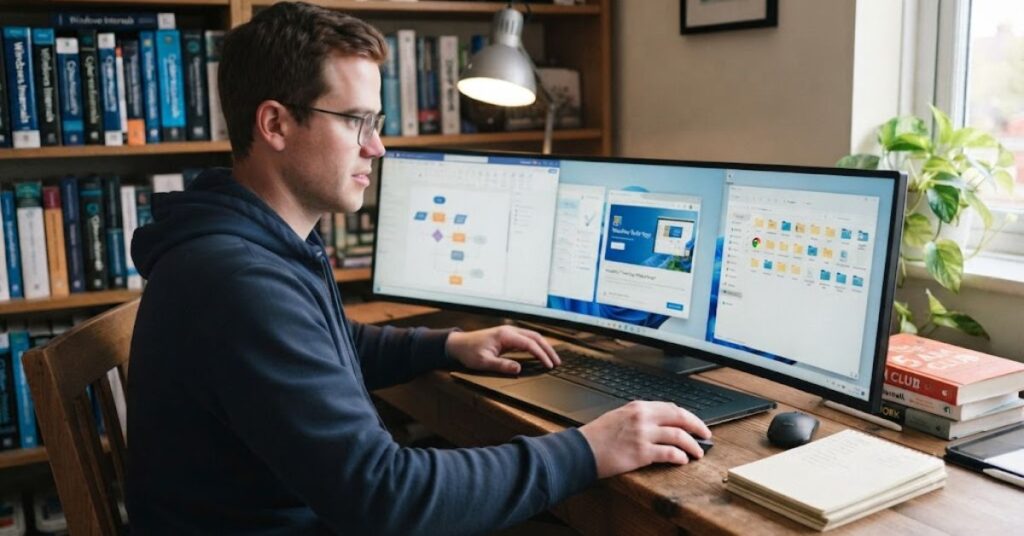
Small improvements made consistently save more time than major system upgrades. The following techniques help reduce repetitive work and make everyday tasks easier.
Master Essential Keyboard Shortcuts
Keyboard shortcuts increase productivity because they reduce mouse movement.
Some useful shortcuts include:
| Shortcut | Function |
| Windows + E | Open File Explorer |
| Windows + L | Lock your PC instantly |
| Windows + D | Show Desktop |
| Windows + V | Clipboard History |
| Windows + Shift + S | Screenshot Tool |
| Alt + Tab | Switch between open apps |
| Ctrl + Shift + Esc | Open Task Manager |
Learning just a few shortcuts can save hundreds of clicks each day.
Enable Clipboard History
Clipboard History stores multiple copied items instead of only one.
This helps when:
- Copying text between documents
- Moving files
- Reusing email templates
- Saving frequently used information
Simply press Windows + V and enable the feature once.
Use Virtual Desktops
Virtual Desktops allow you to organize different tasks into separate workspaces.
For example:
- Desktop 1 — Office work
- Desktop 2 — Personal browsing
- Desktop 3 — Study projects
- Desktop 4 — Entertainment
This simple organization method reduces distractions and makes multitasking much easier.
Snap Windows for Better Multitasking
Windows Snap Layouts let you arrange multiple applications neatly on your screen.
Instead of manually resizing windows, you can quickly organize documents, browsers, spreadsheets, and messaging apps into a clean workspace. This feature is especially useful for professionals, students, and remote workers who often switch between several tasks.
Practical Ways to Make Your Windows PC Run Faster
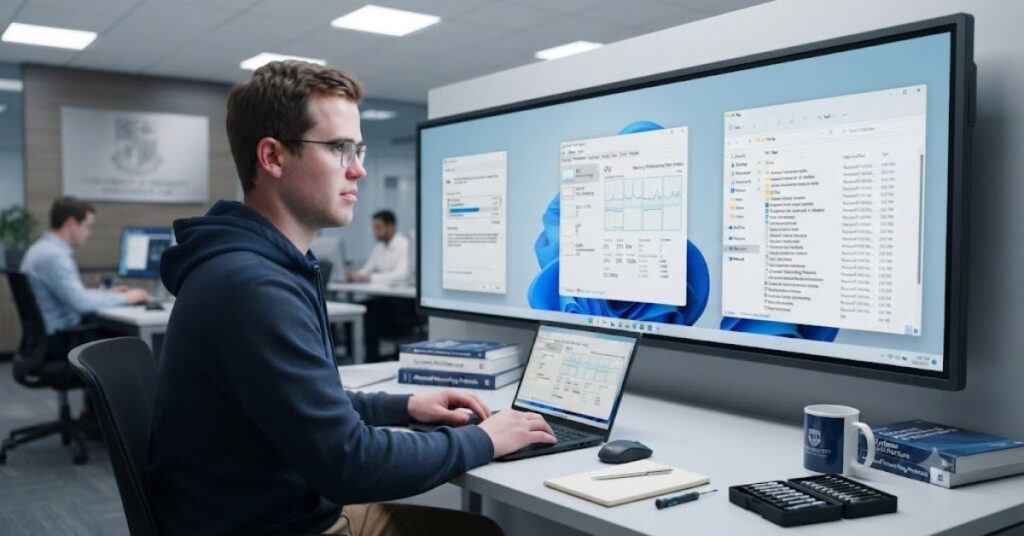
A slow computer can affect your productivity and make even simple tasks frustrating. Fortunately, many performance problems are caused by settings that are easy to fix. These technology hacks for Windows users focus on improving speed by using built-in Windows features instead of third-party optimization tools.
Regular maintenance keeps your computer running smoothly. You do not need to perform every tweak every day. Even spending a few minutes each month can noticeably improve startup time, application performance, and overall responsiveness.
Disable Unnecessary Startup Apps
Many applications automatically launch when Windows starts. While some are essential, many continue running in the background without providing any immediate benefit.
Benefits of disabling unnecessary startup apps:
- Faster boot time
- Lower RAM usage
- Better CPU performance
- Less background activity
- Improved battery life on laptops
How to check startup apps:
- Open Task Manager.
- Select the Startup Apps tab.
- Review applications with a high startup impact.
- Disable programs you do not need immediately after startup.
Free Up Storage with Storage Sense
Low storage space often causes Windows to slow down because the operating system has less room for temporary files and updates.
Storage Sense automatically removes unnecessary files without deleting your personal documents.
Storage Sense can remove:
- Temporary files
- Recycle Bin files
- Windows update leftovers
- Cached system files
- Old download files (if enabled)
Keeping at least 20% of your drive free helps Windows perform more efficiently.
Keep Windows Updated
Keeping Windows updated helps improve your computer beyond adding new functions.They also improve stability, fix bugs, and close security vulnerabilities.
Reasons to install updates regularly:
- Better system stability
- Improved hardware compatibility
- Stronger security protection
- Performance improvements
- Bug fixes
If updates are delayed for too long, your computer may experience compatibility issues with newer applications.
Refresh Your Windows PC with Regular Restarts
Many users leave their computers in Sleep Mode for weeks. While convenient, this allows background processes to continue running.
Restarting your computer helps:
- Refresh system memory
- Close hidden background tasks
- Install pending updates
- Improve overall performance
Restarting your PC every few days is a simple habit that can make your system feel faster.
Remove Software You No Longer Use
Unused programs consume storage space and sometimes continue running in the background.
Review installed software every few months.
Remove applications that:
- You no longer use
- Came pre-installed but are unnecessary
- Duplicate built-in Windows features
- Consume excessive system resources
A cleaner system is easier to manage and often performs better.
Best Security Technology Hacks for Windows Users
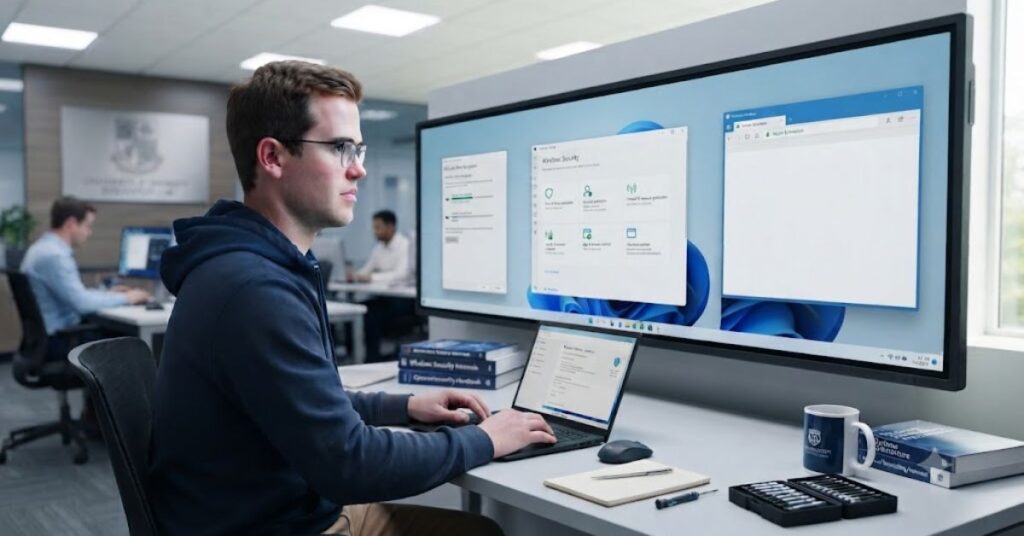
Cybersecurity is no longer only an IT concern. Every Windows user should take simple steps to protect personal information, financial accounts, and important files. Fortunately, Windows includes several powerful security features that are free and easy to use.
Applying these technology hacks for Windows users reduces the chances of malware infections, phishing attacks, and unauthorized access without requiring expensive security software.
Turn On Microsoft Defender Protection
Microsoft Defender provides real-time protection against many common threats.
Key features include:
- Real-time virus scanning
- Malware protection
- Ransomware defense
- Firewall management
- SmartScreen protection
For most home users, keeping Microsoft Defender enabled provides strong everyday security.
Enable Windows Firewall
Your firewall monitors incoming and outgoing network traffic.
It helps block:
- Unauthorized access
- Suspicious network connections
- Malicious software communication
- Certain hacking attempts
Unless you have a specific reason, the firewall should remain enabled at all times.
Use Strong Passwords and Windows Hello
Weak passwords remain one of the biggest security risks.
Instead of using simple passwords, create unique combinations for every important account.
For even better security, enable Windows Hello if your device supports it.
Windows Hello options include:
- Fingerprint login
- Facial recognition
- PIN authentication
These methods are both secure and convenient.
Turn On Automatic Backups
Unexpected hardware failures or ransomware attacks can permanently erase important files.
Creating automatic backups protects your valuable data.
Good items to back up include:
- Family photos
- Work documents
- School assignments
- Financial records
- Important projects
Use Windows Backup or File History to create regular backups.
Be Careful with Unknown Downloads
Many malware infections begin with unsafe downloads or suspicious email attachments.
Before opening any downloaded file:
- Verify the source
- Scan with Microsoft Defender
- Avoid unknown websites
- Ignore suspicious email attachments
- Never disable antivirus protection
A few extra seconds of caution can prevent serious security problems.
Built-In Windows Features That Can Improve Your Daily Experience
Windows includes dozens of built-in tools that many people never notice. These hidden features improve organization, productivity, and everyday convenience without requiring additional software.
Learning these lesser-known options is one of the easiest technology hacks for Windows users because they are already included in the operating system.
Focus Sessions for Better Concentration
Focus Sessions help reduce distractions while working.
You can schedule dedicated work periods while minimizing interruptions.
Benefits include:
- Better concentration
- Improved time management
- Reduced distractions
- Higher productivity
- Better work habits
This feature is especially useful for students and remote workers.
Night Light for Comfortable Viewing
Looking at a bright screen late at night can strain your eyes.
Night Light reduces blue light during evening hours.
Advantages include:
- Less eye strain
- More comfortable reading
- Better nighttime viewing
- Adjustable brightness
- Automatic scheduling
Many users find long work sessions more comfortable after enabling this feature.
Nearby Sharing
Nearby Sharing makes transferring files between Windows devices quick and simple.
You can easily share:
- Photos
- Documents
- Videos
- Presentations
- PDFs
This eliminates the need for USB drives in many situations.
Voice Typing
Windows includes a built-in voice typing feature.
Instead of typing manually, simply speak.
This feature works well for:
- Emails
- Notes
- Reports
- Brainstorming ideas
- Drafting documents
It can significantly improve productivity for users who create large amounts of text.
PowerToys for Advanced Productivity
Microsoft PowerToys offers additional tools for experienced users.
Popular PowerToys features include:
- FancyZones window management
- File renaming
- Keyboard Manager
- Color Picker
- Always On Top
- Mouse utilities
These tools help users customize Windows without modifying the operating system itself.
Smart Storage Management Hacks for Windows Users
Keeping your files organized is just as important as improving system performance. A well-managed computer is easier to use, faster to search, and less likely to run into storage problems. One of the most practical technology hacks for Windows users is creating a simple system for managing files and folders.
Instead of saving everything on the desktop or in the Downloads folder, organize your files into clear categories.It helps you access important documents faster while keeping your files neatly arranged.
Organize Files with Clear Folder Structures
Create folders based on purpose instead of storing everything in one place.
Example folder structure:
- Work
- Personal
- Photos
- Videos
- Projects
- Downloads
- Important Documents
- Backups
A clean folder structure makes searching much easier.
Use File Search More Effectively
Windows Search has improved significantly over the years.
You can search by:
- File name
- File type
- Date modified
- Keywords inside documents
- Folder location
Learning advanced search filters saves time when working with hundreds of files.
Empty the Recycle Bin Regularly
Many users forget that deleted files continue to occupy storage until the Recycle Bin is emptied.
Make it a habit to:
- Review deleted files
- Restore anything important
- Empty the Recycle Bin regularly
This simple task helps free up valuable storage space.
Store Large Files in Cloud Storage
Cloud storage protects important files while freeing local storage.
Common files suitable for cloud storage include:
- Photos
- Videos
- Project archives
- Old documents
- Backup copies
This also makes your files accessible across multiple devices.
Real-Life Example: Small Changes, Big Results
A freelance graphic designer noticed that their Windows laptop had become slow. Opening design software took several minutes, and switching between applications caused frequent delays.
Instead of buying a new laptop, they applied a few simple technology hacks for Windows users. They disabled unnecessary startup programs, enabled Storage Sense, removed unused software, organized project files into folders, activated clipboard history, and restarted the computer regularly.
Within a week, startup time improved noticeably, applications opened faster, and everyday work became smoother. These improvements required no expensive upgrades—only better use of the tools already built into Windows.
Common Mistakes Windows Users Should Avoid
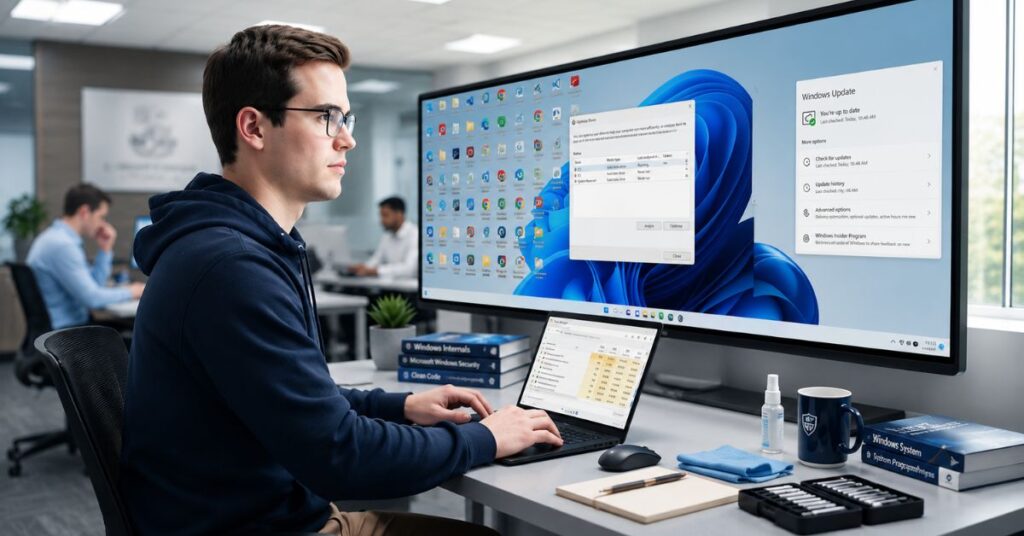
Even experienced users sometimes make mistakes that reduce performance or create security risks. Avoiding these habits helps your computer stay fast, secure, and reliable.
Installing Too Many Optimization Apps
Many “PC cleaner” applications promise dramatic speed improvements but often duplicate features already available in Windows.
Better approach:
- Use built in Windows tools first.
- Install only trusted software.
- Avoid unnecessary system cleaners.
Ignoring Windows Updates
Delaying updates for months can expose your computer to security vulnerabilities and software compatibility issues.
Best practice:
- Install security updates promptly.
- Restart when updates require it.
- Check for updates regularly.
Saving Everything on the Desktop
A crowded desktop makes it harder to find files and may affect organization.
Instead:
- Create folders.
- Archive completed projects.
- Keep only frequently used shortcuts on the desktop.
Never Backing Up Important Files
Hardware failures can happen without warning.
Always keep copies of important:
- Documents
- Family photos
- Business files
- School work
- Personal records
Using Weak Passwords Everywhere
Reusing the same password across multiple accounts increases security risks.
Choose:
- Strong passwords
- Unique passwords
- Password managers when needed
- Two-factor authentication whenever available
Conclusion
Improving your computer does not always require expensive hardware or advanced technical knowledge. By applying these practical technology hacks for Windows users, you can make your PC faster, more organized, and more secure using tools already built into Windows. Small improvements, such as managing startup apps, organizing files, enabling security features, and learning useful shortcuts, can make everyday tasks much easier.
The best results come from building good habits rather than relying on quick fixes. Review your system regularly, remove unnecessary clutter, keep Windows updated, and explore features you have never used before. Over time, these simple practices create a smoother and more productive Windows experience.
Disclaimer
This content is intended to share general knowledge and practical guidance for readers. Windows features may vary depending on your device model, hardware specifications, and operating system version. Always review system settings carefully before making significant changes, and create a backup of important data when necessary.
Author Note
This guide is based on practical Windows usage, current best practices, and real-world productivity techniques. The focus is on simple, reliable solutions that help everyday users improve performance, security, and efficiency without unnecessary complexity or extra software.
(FAQs)
1. What Do Technology Hacks for Windows Users Mean?
Technology hacks for Windows users are practical tips, built-in features, and productivity techniques that help improve computer speed, organization, security, and everyday efficiency.
2. Can I speed up my Windows PC without installing software?
Yes. You can improve performance by disabling unnecessary startup apps, enabling Storage Sense, removing unused programs, restarting regularly, and keeping Windows updated.
3. Which Windows feature is most useful for productivity?
Features like Virtual Desktops, Clipboard History, Snap Layouts, Focus Sessions, and keyboard shortcuts help users complete tasks more efficiently.
4. Are built-in Windows security tools enough?
For most home users, Microsoft Defender, Windows Firewall, SmartScreen, and regular updates provide strong everyday protection when combined with safe browsing habits.
5. How often should I clean my Windows computer?
Review storage, remove unused files, and check startup programs at least once a month. This helps maintain good performance over time.
6. Does organizing files improve performance?
While file organization does not directly increase processing speed, it saves time, reduces clutter, and makes important documents easier to find.
7. Are keyboard shortcuts worth learning?
Absolutely. Learning a few common shortcuts can save time every day, reduce repetitive mouse movements, and improve overall productivity.