

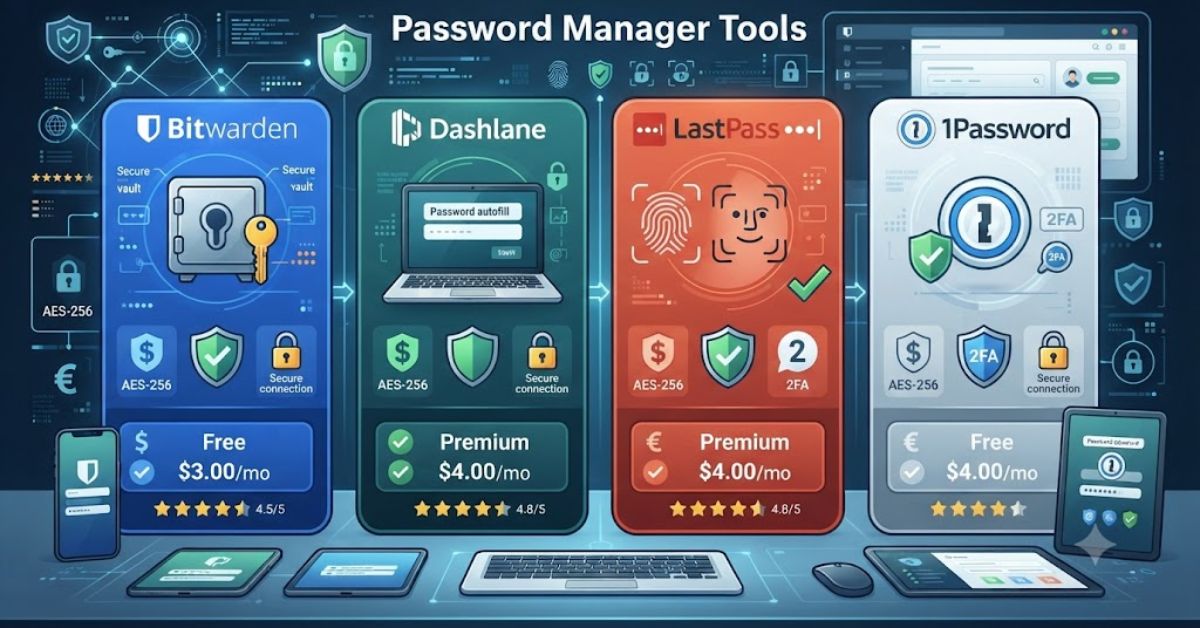
Quick Summary / Snapshot
| Feature | What You’ll Learn |
| Topic | Complete Password Manager Tools Review |
| Best For | Individuals, Families, Businesses |
| Compare | Security, Features, Pricing, Ease of Use |
| Includes | Pros, Cons, Buying Guide |
| Reading Time | About 15 Minutes |
| Difficulty | Beginner Friendly |
Introduction
Managing dozens of online accounts has become difficult. Many people still reuse the same password for banking, email, shopping, and social media. That habit makes it much easier for hackers to access multiple accounts if just one password is exposed.
This password manager tools review is designed to help you understand how password managers work, what security features matter most, and how to compare different options with confidence.
Instead of looking only at marketing claims, this guide focuses on practical features, ease of use, encryption, password sharing, and everyday performance. Whether you are protecting personal accounts or managing business logins, choosing the right password manager can save time while improving your online security.
What Is a Password Manager and Why Should You Use One?
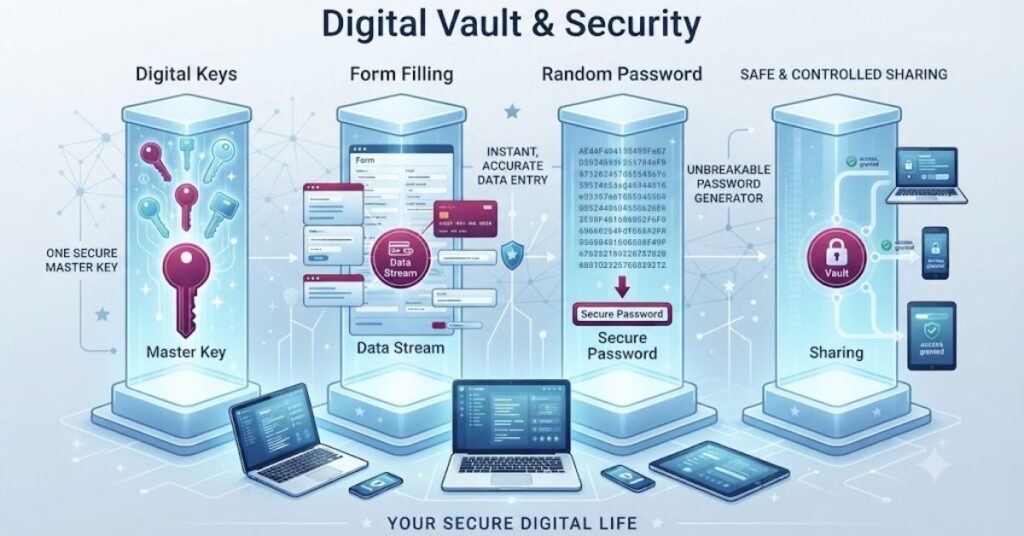
A password manager is a secure application that stores all your passwords in one protected vault. Instead of remembering dozens of different passwords, you only need to remember one strong master password. The software encrypts your login information and automatically fills it in when you visit trusted websites or apps.
Many people hesitate to use a password manager because they worry about storing everything in one place. In reality, a reputable password manager uses advanced encryption, strict security practices, and authentication methods that are much safer than writing passwords in a notebook or saving them in a browser without protection.
A good password manager also helps create long and unique passwords for every account. This reduces the risk of password reuse, which is one of the most common causes of account compromise.
Main Benefits of Using a Password Manager
- Stores passwords securely
- Generates strong passwords instantly
- Saves time with automatic login
- Protects against password reuse
- Works across multiple devices
- Reduces the chance of phishing attacks
- Makes password sharing more secure
Who Should Use a Password Manager?
Password managers are useful for almost everyone. Students can organize their online accounts, professionals can protect work logins, families can securely share passwords, and businesses can improve team security while reducing password related risks.
Key Features to Look for in a Password Manager
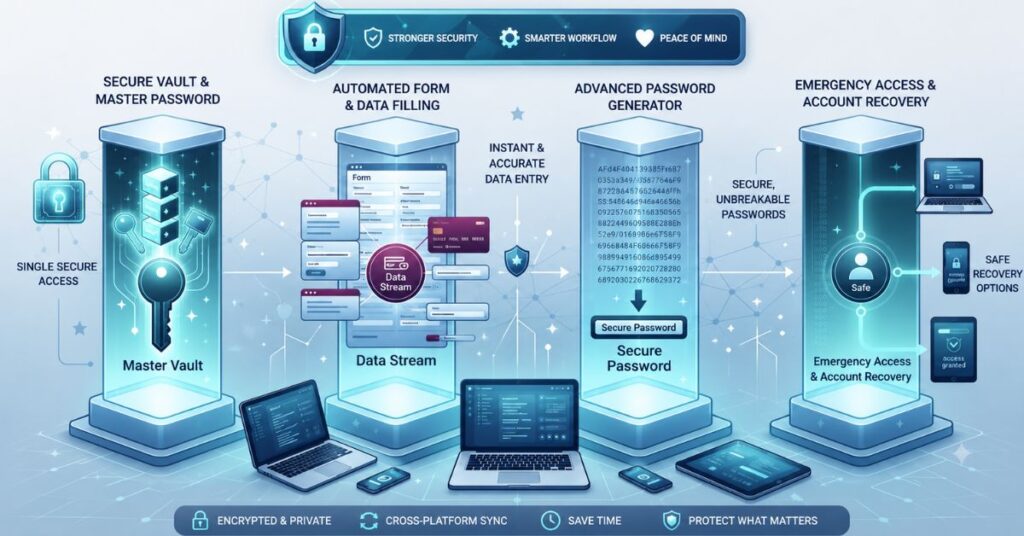
Before choosing a solution, read this password manager tools review to compare your options with confidence.Not every password manager offers the same level of protection. Some focus on simplicity, while others provide advanced security tools for power users and businesses. Understanding the most important features helps you choose a solution that matches your needs instead of paying for features you may never use.
The best password managers balance strong security with convenience. They make everyday logins easier without compromising the protection of your sensitive information.
Strong Encryption
Look for AES-256 encryption, which is widely trusted for protecting sensitive information.
Zero Knowledge Architecture
This security model ensures that even the password manager company cannot read your stored passwords.
Multi Factor Authentication
Turning on multi factor authentication adds another layer of protection to your accounts.
Password Generator
A built in password generator creates long, unique passwords that are difficult to guess.
Secure Password Sharing
Families and teams often need to share passwords safely without exposing them through email or messaging apps.
Cross Platform Support
Choose software that works on Windows, macOS, Android, iPhone, and major web browsers.
Password Health Reports
This password manager tools review explains the key features, security, and performance of leading password managers.Some password managers scan your vault and identify weak, reused, or compromised passwords so you can update them quickly.
Comparison Table: Important Password Manager Features
| Feature | Why It Matters | Recommended |
| AES-256 Encryption | Protects stored passwords | ✅ Yes |
| Zero-Knowledge Security | Provider cannot access your vault | ✅ Yes |
| Password Generator | Creates secure passwords | ✅ Yes |
| Multi Factor Authentication | Adds extra protection | ✅ Yes |
| Password Sharing | Safe family or team sharing | ✅ Yes |
| Cross Platform Sync | Access passwords anywhere | ✅ Yes |
| Browser Extension | Faster login experience | ✅ Yes |
| Password Health Reports | Detects weak passwords | ✅ Yes |
| Dark Web Monitoring | Alerts if passwords leak | Optional |
| Emergency Access | Trusted recovery option | Recommended |
Types of Password Managers Explained
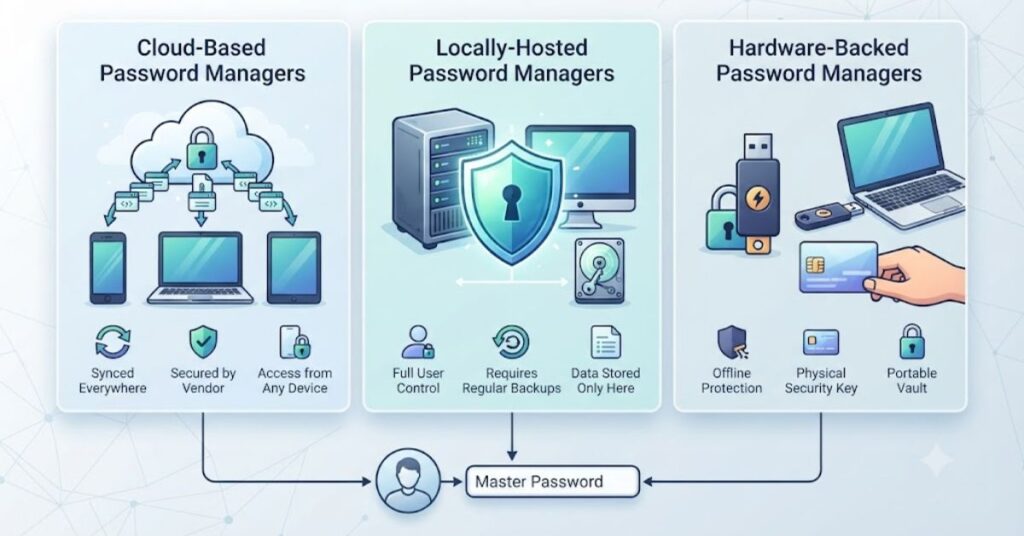
Not every password manager works in the same way. Some store your data online for easy access, while others keep everything on your own device. Knowing the differences helps you choose the option that matches your privacy, convenience, and security needs.
The right choice depends on how often you switch devices, whether you work with a team, and how much control you want over your data.
Cloud-Based Password Managers
Cloud based password managers store your encrypted password vault on secure servers. You can sign in from different devices, and your passwords stay synchronized automatically.
They are ideal for people who use multiple devices every day because changes made on one device appear on the others within seconds.
Best for:
- Personal users
- Families
- Remote workers
- People using multiple devices
Local Password Managers
A local password manager saves your encrypted vault only on your own computer or storage device. Nothing is uploaded unless you choose to back it up.
This option offers more control but also means you are responsible for backups. If your device fails and you have no backup, recovering your passwords may be impossible.
Best for:
- Privacy focused users
- Offline environments
- Advanced users
Browser Password Managers
Most modern browsers can save passwords automatically. Although this is convenient, browser password managers generally provide fewer security features than dedicated password management software.
They are useful for simple browsing but usually lack advanced options such as secure password sharing, detailed security reports, and encrypted notes.
Best for:
- Casual internet users
- Temporary password storage
Business Password Managers
Businesses often need secure access for teams. A business password manager allows administrators to control access, monitor activity, and securely share company credentials without exposing passwords.
These solutions reduce the risk of employees sharing passwords through email or chat applications.
Best for:
- Companies
- IT departments
- Remote teams
How to Choose the Right Password Manager
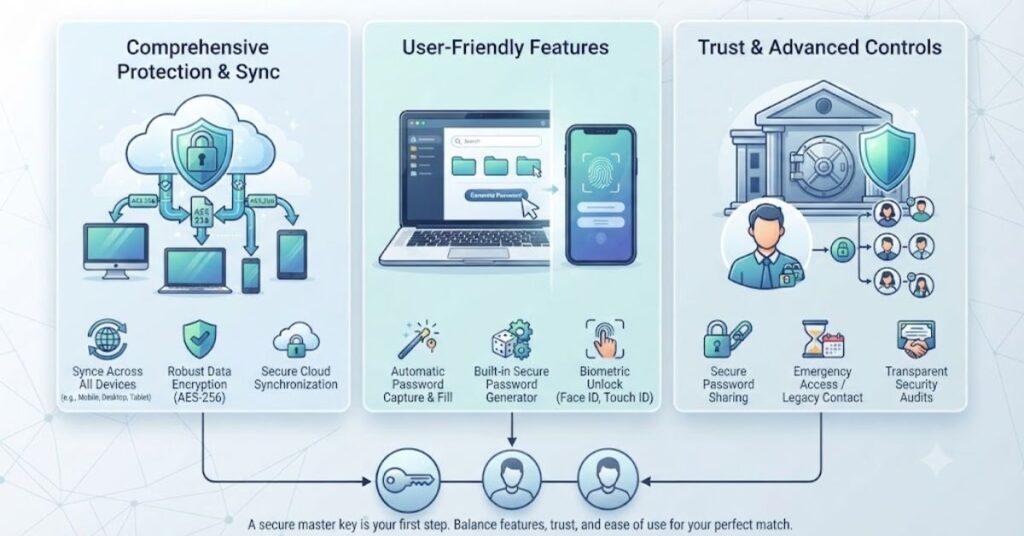
A password manager should fit your daily routine rather than forcing you to change how you work. Instead of selecting software based only on popularity, compare the features that matter most to your personal or business needs.
A careful comparison today can save you from security problems and unnecessary costs in the future.
Look at Security First
Security should always be your highest priority. Look for strong encryption, zero-knowledge architecture, and multi factor authentication before considering any extra features.
If a password manager does not clearly explain how it protects your data, it is better to consider another option.
Check Device Compatibility
Many people switch between a computer, smartphone, and tablet throughout the day. Choose a password manager that supports all the devices and operating systems you use.
Automatic synchronization makes logging in faster without creating separate password lists.
Compare Ease of Use
A secure product should also be simple to use. A clean dashboard, easy password import, and automatic login features improve the overall experience.
If managing passwords feels difficult, people often return to unsafe habits like reusing passwords.
Password Manager vs Browser Password Saver
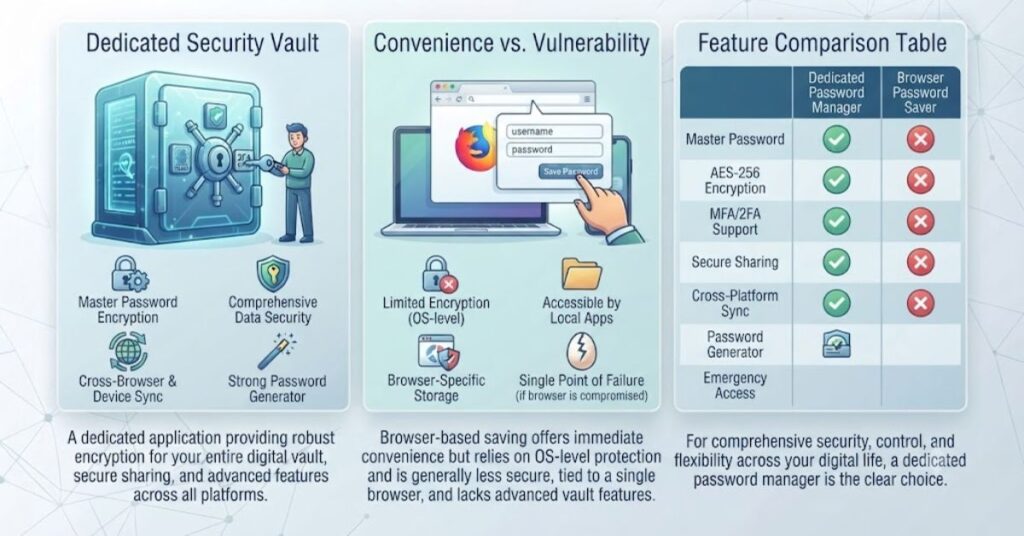
Many users assume that a browser’s built in password saver and a dedicated password manager are the same. While both store your passwords, they differ significantly in terms of security, features, and overall protection. Understanding these differences can help you choose the right solution for your online safety.
Security Comparison
Browser password savers offer basic protection and are convenient for everyday browsing. However, dedicated password managers provide stronger security with features such as end to end encryption, zero knowledge architecture, and multi factor authentication. These advanced security measures make password managers a much safer option for protecting sensitive accounts.A detailed password manager tools review makes it easier to compare different solutions and select the one that offers the best balance of security and convenience.
Feature Comparison
Dedicated password managers include a wide range of features beyond password storage. They offer password generators, encrypted notes, secure password sharing, breach monitoring, emergency access, and password health reports. Browser password savers usually provide only basic password storage and autofill, with fewer advanced security tools.
Which Option Should You Choose?
If you only save passwords for a few websites, a browser password saver may be enough for basic convenience. However, if you want stronger security for personal, financial, or business accounts, a dedicated password manager is the better choice. It provides greater protection and more useful features for managing your digital life.
Free vs Paid Password Managers
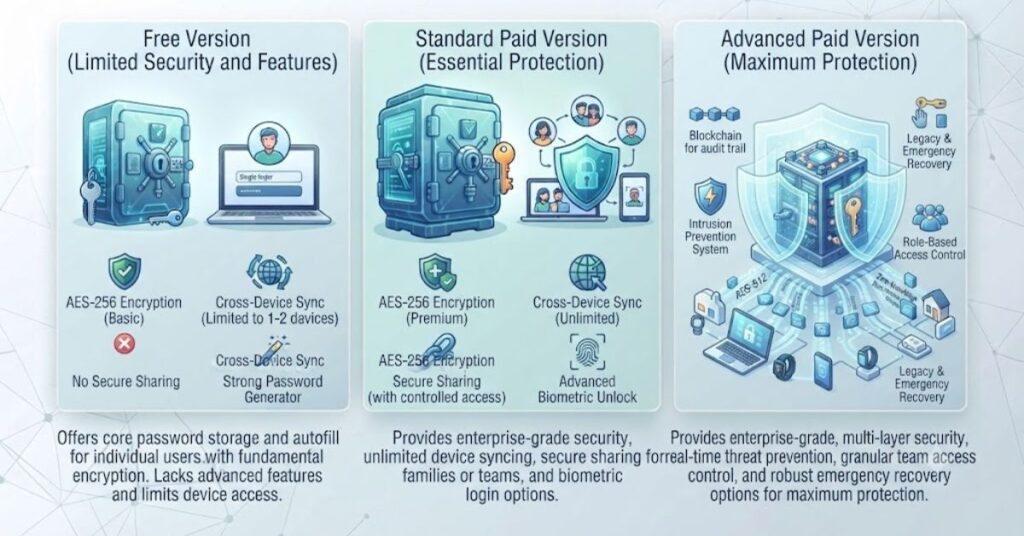
One of the most common questions people ask is whether a free password manager is enough or if a premium plan is worth paying for. The answer depends on your security needs, the number of devices you use, and the features you require.
Benefits of Free Password Managers
Free password managers typically provide essential features such as secure password storage, password generation, and automatic login. They are a great starting point for individuals who want better password security without spending money.
Advantages of Premium Plans
Premium password managers offer additional features such as unlimited device synchronization, secure password sharing, dark web monitoring, encrypted file storage, emergency access, and priority customer support. These features are especially useful for families, professionals, and businesses that manage multiple accounts.
When Should You Upgrade?
If you use several devices, share passwords with family members or coworkers, or store sensitive information, upgrading to a premium password manager can provide better security, greater convenience, and more advanced protection.
Step by Step Guide to Setting Up a Password Manager
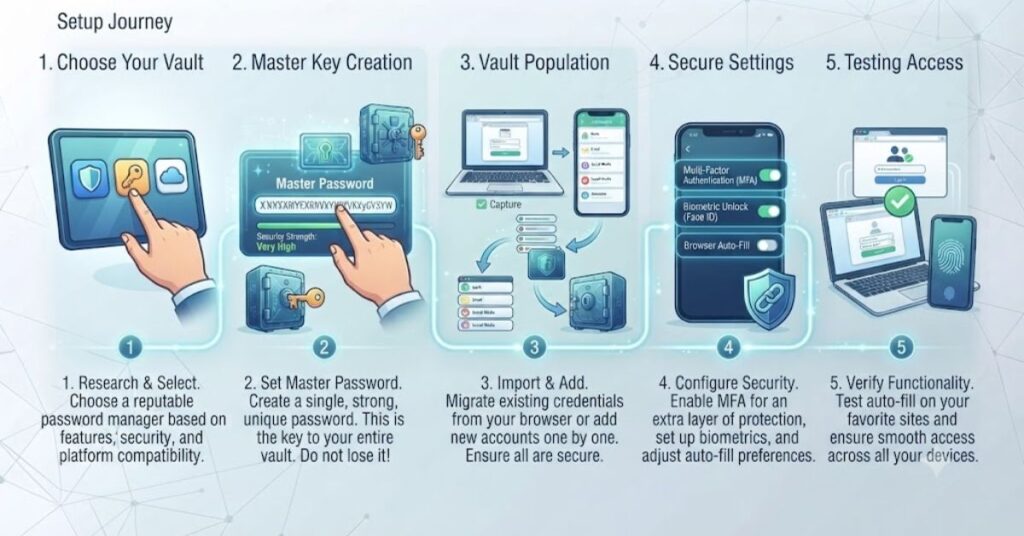
Setting up a password manager is quick and straightforward. By following a few simple steps, you can improve your online security and make managing your passwords much easier.
Step 1: Create a Strong Master Password
Choose a long, unique master password that is difficult to guess but easy for you to remember. This password protects your entire password vault, so it should never be reused for any other account.
Step 2: Import Existing Passwords
If you currently save passwords in your browser or another password manager, import them into your new password manager. This saves time and eliminates the need to enter each password manually.
Step 3: Enable Multi-Factor Authentication
Turn on multi factor authentication (MFA) to add an extra layer of security. Even if someone discovers your master password, they will still need a second verification step to access your vault.
Step 4: Replace Weak Passwords
Review your password health report and replace weak, reused, or compromised passwords with strong, unique passwords generated by the password manager. This significantly reduces the risk of account breaches.
Step 5: Keep Your Vault Updated
Review your password vault regularly by deleting unused accounts, updating important passwords, and organizing your stored information. Keeping your vault clean and up to date improves both security and usability.
Real-Life Example: How a Password Manager Prevented a Security Problem
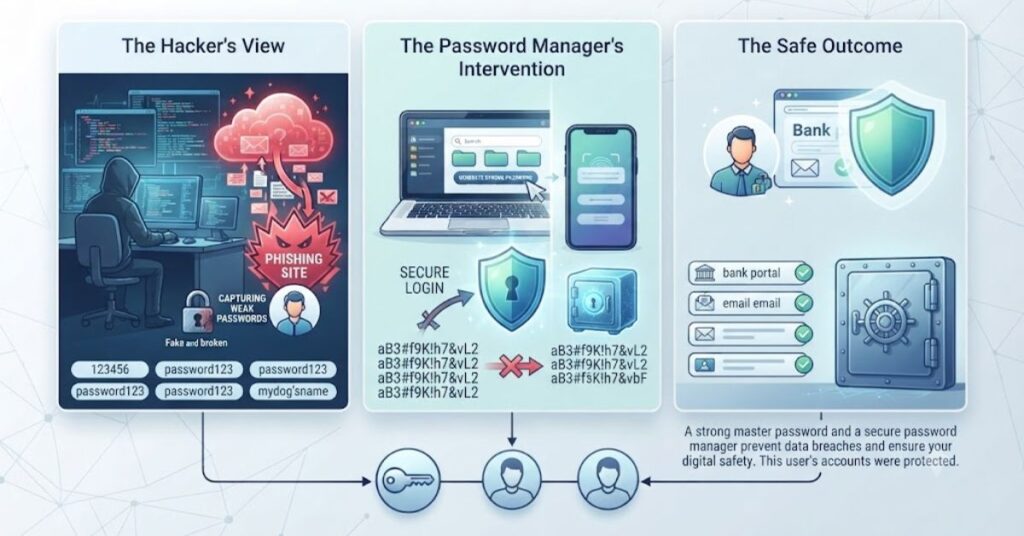
A freelance graphic designer managed over sixty online accounts, including email, banking, cloud storage, and client portals. To keep things simple, the same password was reused across several websites.
After a popular online store suffered a security incident, customer login details were exposed. Attackers obtained the email address and password used on that site. Because the same password was used elsewhere, criminals attempted to access the designer’s email and cloud storage accounts.
Fortunately, after switching to a password manager, every account received a unique, randomly generated password. Even if one password became exposed, the remaining accounts stayed protected because each login used completely different credentials.
This simple change prevented further account compromise and eliminated the need to remember dozens of complex passwords.
Common Mistakes People Make When Using Password Managers
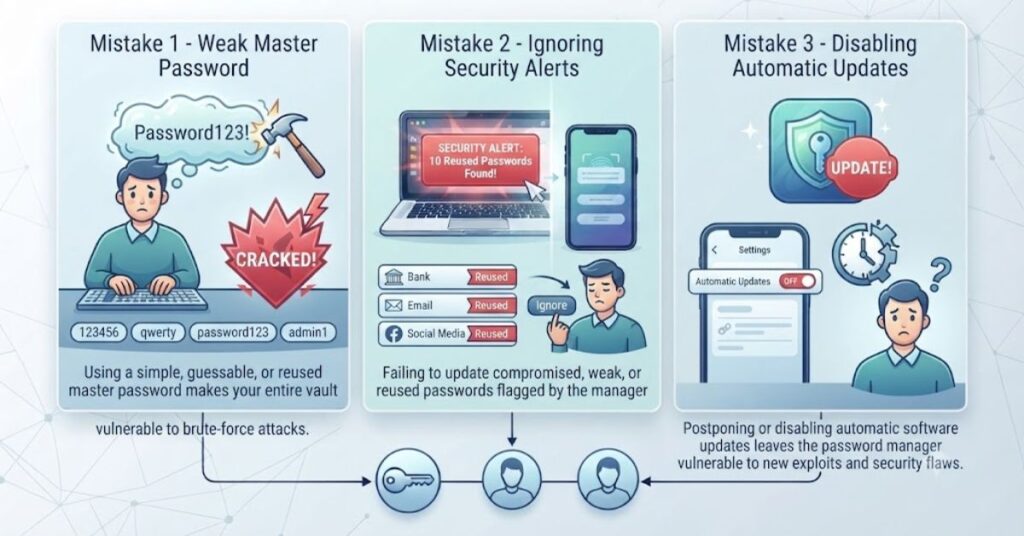
Using a password manager improves security, but poor habits can still create unnecessary risks. Avoiding these common mistakes helps you get the full benefit of password management software.
Using a Weak Master Password
The master password protects your entire vault. A short or predictable password makes every stored account more vulnerable.
Create a long password that combines several unrelated words instead of simple names or dates.
Ignoring Multi-Factor Authentication
Our password manager tools review helps you find the right password manager for personal or business use.Many users skip two factor authentication because it adds an extra step during login. However, this small effort significantly increases security if someone learns your master password.
Reusing Old Passwords
Some people install a password manager but continue using old passwords across different websites.
Take time to replace reused passwords with strong, unique ones generated by the password manager.
Forgetting Emergency Access
Many password managers allow trusted family members to access your vault during emergencies.
Setting up emergency access can prevent permanent data loss while still protecting your privacy.
Never Reviewing Security Reports
Password managers often identify weak, duplicate, or compromised passwords.
Review these reports regularly and update affected accounts before they become security problems.
Expert Tips to Get More Value from a Password Manager
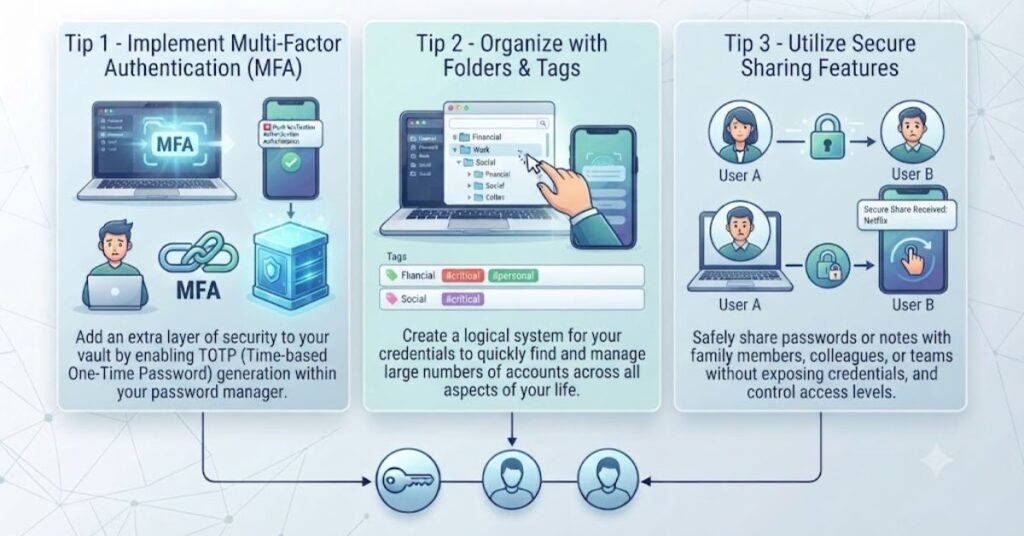
Using a password manager correctly makes everyday browsing both safer and more convenient. Small improvements in your habits can greatly increase account security without adding extra work.
Update Weak Passwords First
Focus on your email account, banking, cloud storage, and work accounts before updating less important logins.
Store More Than Passwords
Many password managers also secure important information such as software license keys, Wi-Fi passwords, recovery codes, passport details, and confidential notes.
Keeping this information inside an encrypted vault reduces the chance of losing sensitive records.
Review Your Password Vault Every Few Months
Delete unused accounts, remove duplicate entries, and update passwords for important services.
A clean password vault is easier to manage and improves overall security.
Enable Automatic Backups
If your password manager supports encrypted backups, enable them. A backup protects your data if your device is lost or damaged.
Keep Your Software Updated
Developers regularly release security improvements and bug fixes. Installing updates helps protect your password vault against newly discovered threats.
Author Note
As someone who regularly researches cybersecurity tools and digital privacy practices, I have seen how simple password habits can either strengthen or weaken online security. The purpose of this guide is to explain password managers in clear language so that both beginners and experienced users can make informed decisions. Security is not only about choosing the best software it is also about developing safer daily habits.
Final Thoughts
Choosing the right password manager is one of the simplest ways to improve your online security. Instead of trying to remember dozens of passwords or reusing the same one across different accounts, you can store everything safely in an encrypted vault. A reliable password manager saves time, creates stronger passwords, and reduces the risk of data breaches.
This password manager tools review explained the most important features, different types of password managers, buying tips, security practices, and common mistakes to avoid. The best choice depends on your personal needs, the number of devices you use, and the level of protection you expect. By selecting a trusted solution and following good password habits, you can protect your personal information and enjoy a safer online experience.
Disclaimer
The information shared in this article is for educational and informational purposes only. Password manager features, pricing, and security options may change over time. Always review the latest information on the official website before purchasing or using any password manager. While password managers greatly improve online security, no software can guarantee complete protection against every cyber threat. Safe browsing habits and regular software updates remain equally important.
(FAQs)
Are password managers safe to use?
Yes. Trusted password managers use strong encryption, zero-knowledge architecture, and additional security features like multi-factor authentication to protect your stored passwords.
Can a password manager create strong passwords?
Yes. Most password managers include a built-in password generator that creates long, random, and unique passwords for every account.
What happens if I forget my master password?
Many password managers cannot recover your master password because of their zero-knowledge security model. Some offer recovery methods or emergency access, while others require restoring from a backup.
Can I use one password manager on multiple devices?
Yes. Most modern password managers synchronize your encrypted password vault across computers, smartphones, and tablets, making your passwords available wherever you sign in.
Is a free password manager enough?
Free password managers work well for basic password storage. However, premium versions usually include advanced features such as secure password sharing, dark web monitoring, encrypted file storage, and priority customer support.
Should businesses use password managers?
Yes. Business password managers improve security by allowing teams to share credentials safely, manage employee access, and monitor account activity without exposing sensitive passwords.
How often should I change my passwords?
You should update passwords immediately if they are weak, reused, or exposed in a data breach. Otherwise, focus on using unique, strong passwords instead of changing them on a fixed schedule.