


Quick Summary
If you want to understand how a computer works, this computer hardware components guide explains every essential part in simple English. You will learn what each component does, how all parts work together, which hardware matters most for different tasks, common buying mistakes, and practical tips for upgrading your computer. Whether you are building your first PC or replacing old parts, this guide helps you make smarter decisions with confidence.
Introduction
A computer hardware components guide is one of the best resources for anyone who wants to understand how a computer works. Every desktop or laptop depends on different physical components that work together to process information, store files, display graphics, and run software smoothly. Learning these components helps you choose the right computer, troubleshoot problems, and upgrade your system without wasting money.
Many people focus only on the processor or memory when buying a computer, but overall performance depends on how well all hardware components work together. A balanced system delivers better speed, stability, and long term value than simply buying the most expensive processor. This guide explains every important hardware component using simple language, practical examples, and expert recommendations so beginners and experienced users can make informed decisions.
What Are Computer Hardware Components?
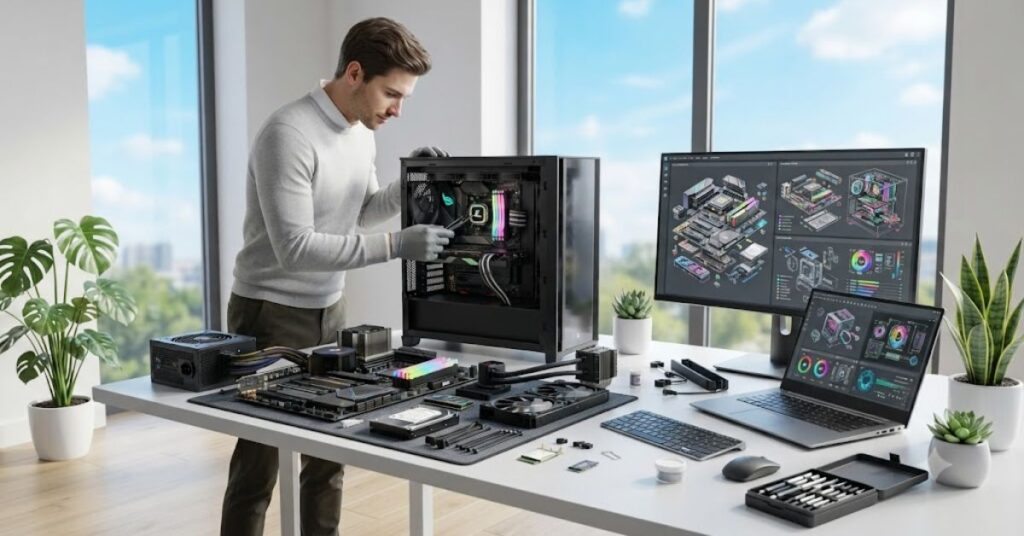
Computer hardware components are the physical parts of a computer that you can see and touch. These parts perform different jobs, but together they allow the computer to complete millions of operations every second.
Unlike software, which consists of programs and applications, hardware provides the physical foundation that makes those programs run. Without hardware, an operating system, web browser, or office application cannot function.
Some hardware processes data, some stores information, while others allow users to interact with the computer through input and output devices.
Hardware vs Software
| Hardware | Software |
| Physical components | Programs and applications |
| Can be touched | Cannot be touched |
| Wears out over time | Can be updated |
| Includes CPU, RAM, SSD | Includes Windows, Linux, browsers, games |
Understanding this difference makes it easier to identify performance issues. Slow performance is not always caused by weak hardware; outdated software or poor optimization can also reduce speed.
Why Understanding Hardware Matters
Knowing computer hardware helps you:
- Buy the right computer
- Upgrade wisely
- Save money
- Troubleshoot problems faster
- Improve system performance
- Increase computer lifespan
Instead of replacing an entire computer, you may only need to upgrade memory or storage to achieve a noticeable improvement.
Core Computer Hardware Components Explained
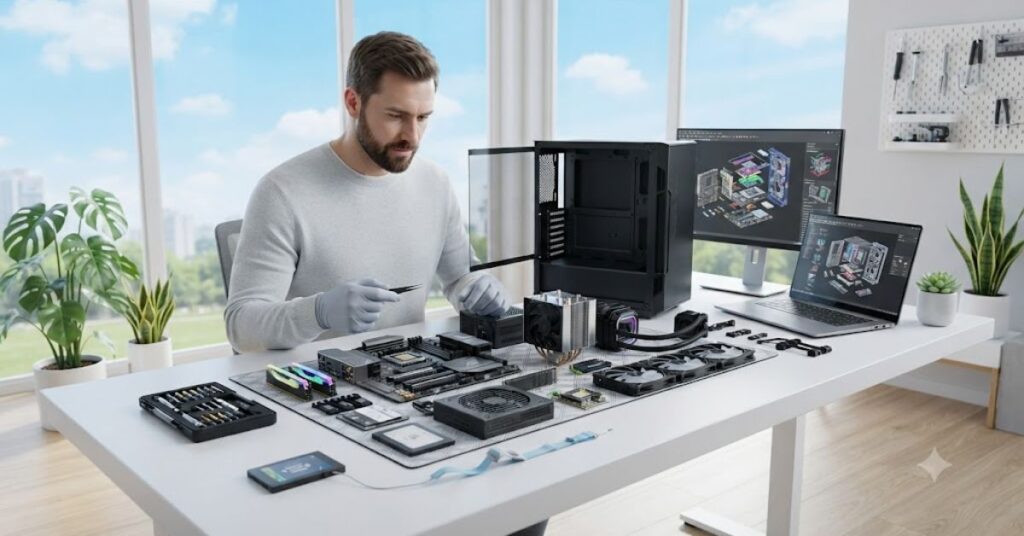
Every computer contains several essential hardware components. Each part has a specific responsibility, and together they create a complete computing system.
Motherboard
The motherboard is the main circuit board that connects every hardware component. It allows communication between the processor, memory, storage devices, graphics card, and expansion cards.
When choosing a motherboard, compatibility is one of the most important factors. A motherboard must support your processor generation, RAM type, and expansion requirements.
Processor (CPU)
The Central Processing Unit (CPU) acts as the computer’s brain. It performs calculations, executes instructions, and controls almost every operation happening inside the system.
A faster processor improves:
- Office work
- Programming
- Video editing
- Gaming
- Multitasking
- Data analysis
Clock speed, number of cores, cache size, and architecture all influence CPU performance.
Memory (RAM)
RAM stores temporary information that active programs need while running.
More RAM allows:
- Better multitasking
- Faster switching between applications
- Smoother editing
- Improved gaming
- Reduced system lag
Unlike storage drives, RAM loses its data when the computer shuts down.
Storage Drives
Storage devices permanently save your operating system, files, photos, videos, and applications.
The two most common storage options are:
| Storage Type | Best For | Speed |
| HDD | Large storage at lower cost | Moderate |
| SSD | Fast performance | Very Fast |
Most modern computers use SSDs because they significantly reduce boot time and application loading.
Graphics Processing Unit (GPU)
The graphics card processes visual information.
It is especially important for:
- Gaming
- Video editing
- 3D modeling
- Animation
- AI workloads
- Graphic design
Basic computers often use integrated graphics, while gaming and professional systems rely on dedicated graphics cards.
How Computer Hardware Components Work Together
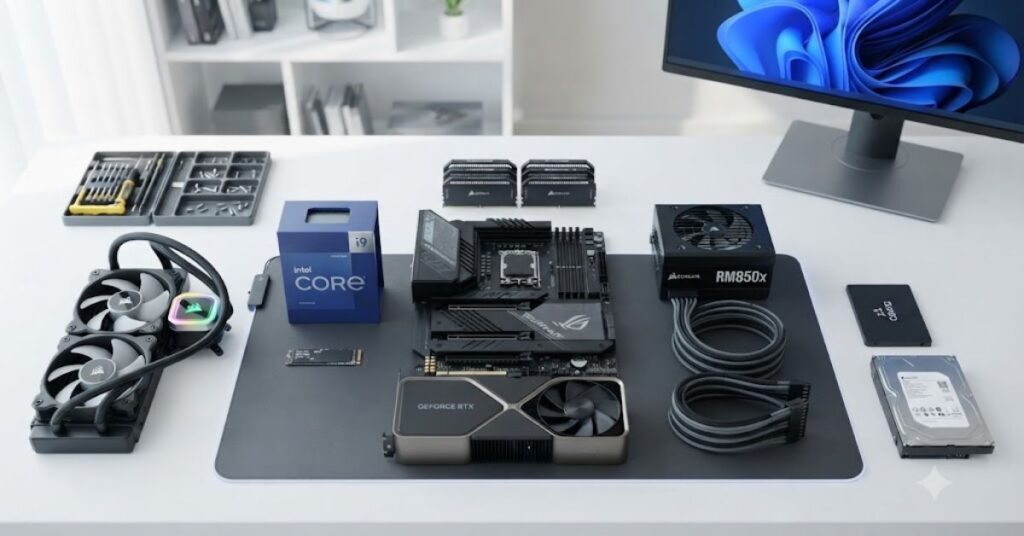
Individual hardware parts cannot operate independently. Every component communicates with others to complete tasks efficiently.
For example, when you open a web browser:
- The storage drive loads the application.
- The motherboard transfers information.
- The CPU processes instructions.
- RAM temporarily stores active data.
- The graphics processor renders visuals.
- The monitor displays the final output.
This teamwork happens within seconds and repeats continuously while you use the computer.
Example Workflow
| Component | Role During Operation |
| CPU | Processes instructions |
| RAM | Holds active data |
| SSD | Loads applications |
| Motherboard | Connects components |
| GPU | Displays graphics |
| Power Supply | Delivers electricity |
| Cooling System | Controls temperature |
A balanced hardware configuration is more important than having only one high end component. For example, pairing a powerful processor with very little RAM or an outdated storage drive can create performance bottlenecks that limit the overall speed of the system.
Essential Computer Hardware Components You Should Never Ignore
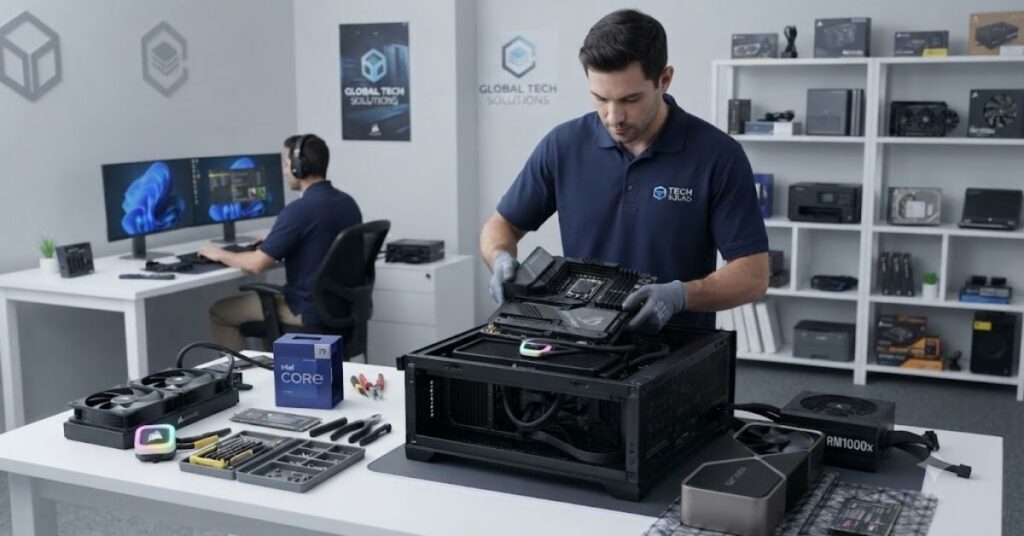
Many people think the processor, RAM, and storage are enough to build a computer. In reality, several other components play an important role in keeping your system stable, efficient, and reliable. A complete computer hardware components guide should explain these parts because even the fastest processor cannot perform well without proper power delivery, cooling, and connectivity.
Understanding these components helps you choose better hardware, avoid compatibility issues, and build a computer that performs well for years.
Power Supply Unit (PSU)
The Power Supply Unit, commonly called the PSU, converts electricity from your wall outlet into the correct voltage for every computer component. It provides stable power to the motherboard, processor, graphics card, storage drives, and cooling fans.
A low quality PSU can cause random shutdowns, hardware damage, or reduced system life. Choosing a reliable power supply is one of the smartest investments when building or upgrading a PC.
When selecting a PSU, consider:
- Total wattage
- Power supply with an 80 PLUS Bronze rating or higher
- Modular or non modular cables
- Safety protections
- Future upgrade needs
A gaming computer with a dedicated graphics card usually requires a higher-capacity PSU than a basic office computer.
Cooling System
Every computer generates heat while running. Without proper cooling, hardware temperatures rise, causing slower performance and reducing the lifespan of important components.
Cooling systems remove excess heat and help maintain stable temperatures.
There are two common cooling methods:
Air Cooling
Air cooling uses heat sinks and fans to remove heat from the processor and other components. It is affordable, reliable, and suitable for most users.
Liquid Cooling
Liquid cooling transfers heat through coolant and radiators. It offers better cooling performance and is often used in gaming PCs, professional workstations, and systems that run heavy workloads for long periods.
Good airflow inside the computer case is just as important as the cooling solution itself.
Computer Case
The computer case is more than just an outer shell. It protects internal hardware while providing airflow, cable management, and space for upgrades.
A well designed case improves cooling efficiency and makes future maintenance much easier.
Before buying a case, check:
- Motherboard compatibility
- Graphics card clearance
- Airflow design
- Fan support
- Cable management space
- Dust filters
Choosing a quality case can improve both appearance and long-term performance.
Expansion Cards
Expansion cards add new features that the motherboard may not provide.
Common examples include:
- Wi-Fi cards
- Bluetooth adapters
- Sound cards
- Video capture cards
- Additional USB expansion cards
- Network interface cards
Most modern motherboards include many built-in features, but expansion cards remain useful for specialized needs.
Computer Ports and Connectors
Ports allow your computer to communicate with external devices.
Common ports include:
- USB-A
- USB-C
- HDMI
- DisplayPort
- Ethernet
- Audio jack
- Thunderbolt
- SD card reader
Understanding these ports ensures compatibility with monitors, printers, storage devices, cameras, and other accessories.
How to Choose the Right Hardware Components
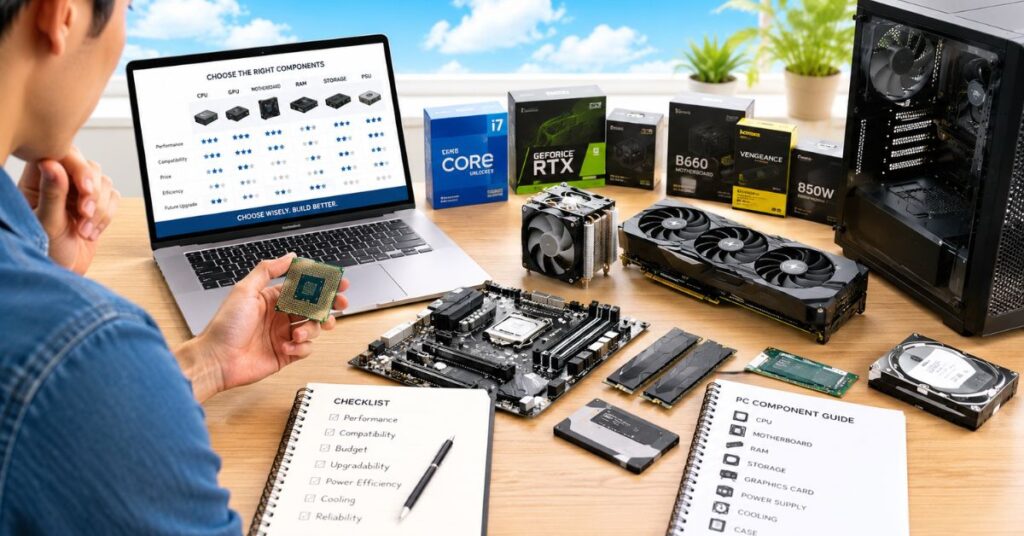
Buying computer hardware is easier when you first understand how you plan to use your computer. Instead of purchasing the most expensive parts, focus on building a balanced system that matches your daily tasks.
A practical computer hardware components guide always recommends selecting hardware based on real-world needs rather than marketing claims.
For Students
Students usually need a computer for:
- Online classes
- Research
- Assignments
- Video meetings
- Web browsing
A mid-range processor, 16 GB RAM, and an SSD provide smooth performance for most educational tasks.
For Office Work
Business users benefit from hardware that supports productivity and reliability.
Recommended priorities include:
- Fast SSD storage
- Stable processor
- Sufficient RAM
- Quiet cooling
- Reliable power supply
This combination allows smooth multitasking between spreadsheets, presentations, email, and web applications.
For Gaming
Gaming systems require balanced hardware because every component affects frame rates and responsiveness.
Important priorities include:
- Powerful graphics card
- Modern processor
- Fast RAM
- High-speed SSD
- Efficient cooling
- Reliable power supply
Ignoring any one of these areas can create a performance bottleneck.
For Content Creators
Video editors, graphic designers, and 3D artists often work with large files and demanding software.
Recommended hardware includes:
- Multi-core processor
- High capacity RAM
- Dedicated graphics card
- Fast NVMe SSD
- Large secondary storage
- Efficient cooling
This configuration speeds up rendering and makes the overall workflow more efficient.
Hardware Compatibility: Why It Matters
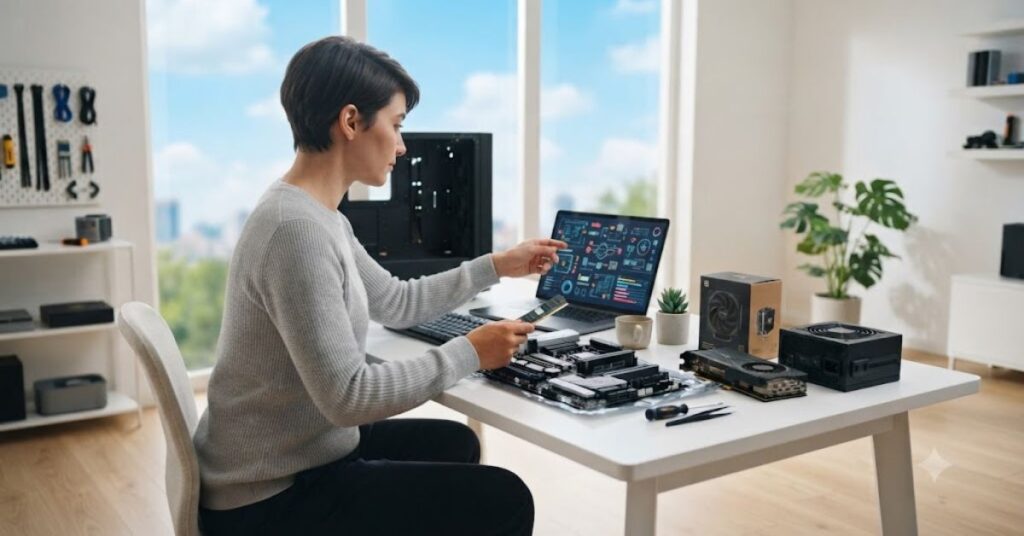
Even high-quality components will not work properly if they are incompatible with one another. Compatibility is one of the most overlooked topics in any computer hardware components guide, yet it is essential for building a stable system.
Before purchasing new hardware, always verify that each component supports the others.
Processor and Motherboard
A processor only works with specific motherboard sockets and chipsets.
Always confirm:
- Socket type
- Processor generation
- BIOS support
RAM Compatibility
Not all RAM modules are compatible with every motherboard.
Check:
- DDR generation
- Maximum supported speed
- Maximum memory capacity
- Number of memory slots
Installing unsupported RAM may prevent the computer from starting.
Power Requirements
Every component consumes electricity.
Choose a power supply with enough capacity to support these components:
- Processor
- Graphics card
- Storage devices
- Cooling fans
- Future upgrades
Leaving extra power capacity helps improve system stability.
Physical Size
Large graphics cards and cooling systems require sufficient space inside the computer case.
Always verify:
- GPU length
- CPU cooler height
- Storage mounting locations
- Cable management clearance
Small compatibility checks can prevent expensive installation problems later.
Real-Life Example
Ali wanted to improve his five year old desktop because it had become slow during everyday tasks. At first, he planned to replace the entire computer. Before spending money, he learned the basics from a computer hardware components guide and discovered that his processor was still capable of handling his daily workload.
Instead of buying a new PC, he upgraded the system by replacing the old hard drive with an SSD and increasing the RAM from 8 GB to 16 GB. He also cleaned the cooling fans and installed a reliable power supply because the original unit had become unstable over time.
After these upgrades, the computer started much faster, applications opened quickly, and multitasking became smooth. Ali saved a significant amount of money while extending the life of his existing system. This example shows that understanding hardware components helps users make smarter decisions instead of replacing a computer unnecessarily.
Mistakes to Avoid When Buying Computer Hardware

Many buyers spend more than necessary because they focus on specifications without considering how the components work together. Avoiding these mistakes can improve both performance and long-term value.
Buying the Most Expensive Processor Only
A high end processor cannot deliver its full performance if it is paired with slow storage or insufficient RAM.
Ignoring the Power Supply
Many people choose the cheapest PSU available.Investing in a quality power supply helps prevent system crashes and protects expensive computer components.
Choosing Too Little RAM
Modern applications and multitasking require adequate memory. Buying too little RAM often results in slow performance and frequent upgrades.
Using Only an Old Hard Drive
Traditional hard drives are slower than SSDs. Installing an SSD is one of the most noticeable upgrades for improving everyday speed.
Poor Airflow
Many users overlook airflow when selecting a computer case. Limited ventilation increases temperatures, causing components to work harder and reducing their lifespan.
Not Checking Compatibility
Purchasing incompatible hardware wastes both time and money. Confirm that all components are compatible before you place your order.
Ignoring Future Upgrades
Buying hardware without considering future expansion can make upgrades difficult later. Choosing a motherboard with extra RAM slots or additional storage support provides greater flexibility as your needs grow.
How to Protect and Maintain Your Computer Hardware

Buying quality hardware is only the first step. Regular maintenance helps every component perform efficiently and extends the life of your computer. A good computer hardware components guide is not just about identifying parts it also teaches you how to keep them in excellent condition.
Even powerful computers can become slow if dust builds up, storage becomes full, or cooling systems stop working efficiently. A few simple maintenance habits can prevent expensive repairs and improve everyday performance.
Keep Your Computer Clean
Keeping dust away is essential for protecting your computer components.It blocks airflow, increases temperatures, and forces cooling fans to work harder.
To keep your computer clean:
- Remove dust from fans every few months.
- Clean air vents with compressed air.
- Wipe the computer case with a soft cloth.
- Keep the computer away from moisture and direct sunlight.
A clean system runs cooler and usually lasts longer.
Monitor Hardware Temperature
High temperatures reduce performance and may shorten the lifespan of components.
Pay special attention to:
- CPU temperature
- GPU temperature
- SSD temperature
- System airflow
If temperatures stay unusually high, check the cooling fans, thermal paste, and airflow inside the computer case.
Update Drivers and Firmware
Hardware manufacturers regularly release updates that improve performance, stability, and compatibility.
Keeping drivers updated can improve:
- Graphics performance
- Storage reliability
- Device compatibility
- Overall system stability
Always download updates from the official manufacturer.
Protect Your Computer from Power Problems
Unexpected power failures can damage hardware and corrupt important files.
You can reduce risks by using:
- A quality surge protector
- An uninterruptible power supply (UPS)
- A reliable power supply unit inside the computer
Stable electricity helps protect valuable hardware.
Upgrade Components When Needed
Technology changes over time, but you do not always need to replace your entire computer.
Common upgrades include:
- Increasing RAM
- Installing a faster SSD
- Replacing an old graphics card
- Improving the cooling system
Small upgrades often provide a noticeable improvement at a much lower cost than buying a new computer.
Signs Your Computer Hardware Needs an Upgrade
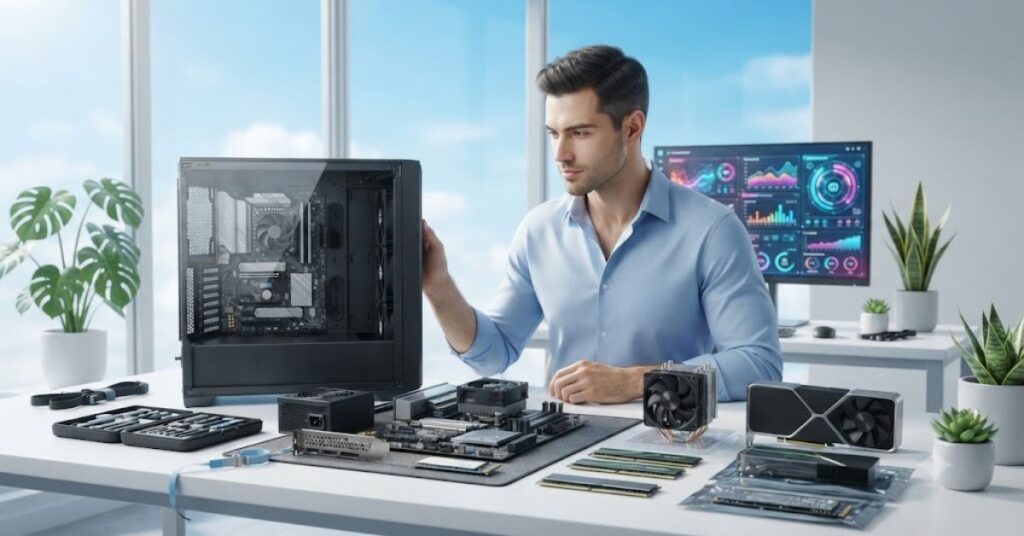
Every computer reaches a point where certain components struggle to keep up with modern software. Recognizing these warning signs early helps you upgrade the right part instead of replacing the whole system.
Slow Startup Times
If your computer takes several minutes to start, your storage drive may be outdated. Replacing an old hard drive with an SSD is one of the most effective upgrades.
Frequent Freezing
Applications that stop responding regularly may indicate insufficient RAM or an aging processor.
Loud Cooling Fans
Fans running at maximum speed most of the time often suggest overheating or poor airflow.
Low Gaming or Editing Performance
Poor graphics performance may mean your graphics card no longer meets modern software requirements.
Storage Always Full
Running out of storage space slows file management and software updates. Adding another SSD or HDD provides additional room for future files.
Random Shutdowns
Unexpected shutdowns may indicate a failing power supply, overheating, or aging hardware components.
Expert Tips for Choosing Better Computer Hardware
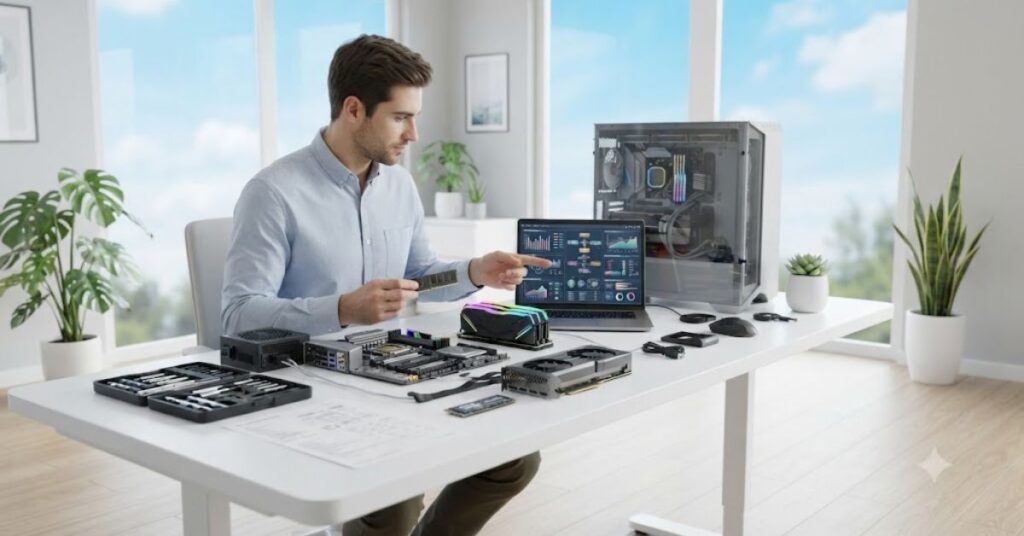
A successful computer build depends on planning rather than simply buying expensive parts. These expert recommendations can help you make smarter decisions.
Build a Balanced System
Do not allocate the majority of your budget to just one component. Balance your investment across the processor, memory, storage, graphics card, and power supply.
Buy for Your Real Needs
Choose hardware based on how you actually use your computer. A student, gamer, programmer, and video editor all have different hardware requirements.
Choose Trusted Brands
Reliable manufacturers often provide better quality control, longer warranties, and regular firmware updates.
Think About Future Upgrades
Select hardware that allows future expansion.
Examples include:
- Extra RAM slots
- Additional storage connectors
- Higher-capacity power supply
- Larger computer case
Planning ahead reduces future upgrade costs.
Focus on Reliability Instead of Marketing
Expensive hardware is not always the best choice. Compare real world performance, compatibility, warranty, and reliability before making a purchase.
Why Learning Computer Hardware Is a Valuable Skill

Understanding computer hardware benefits more than just IT professionals. It helps students, office workers, business owners, and home users make informed technology decisions.
Learning the basics allows you to troubleshoot common problems, upgrade components confidently, and avoid unnecessary repair costs. As technology continues to evolve, hardware knowledge becomes an increasingly valuable skill for both personal and professional use.
Whether you use a computer for studying, gaming, content creation, or business, understanding how each component works together helps you get the best performance from your investment.
Disclaimer
This guide is intended for educational and informational purposes only. Computer hardware specifications, compatibility, and performance may vary depending on the manufacturer, operating system, and individual computer configuration. Always confirm compatibility before purchasing or installing new hardware components, and follow the manufacturer’s installation guidelines to avoid potential damage.
Author Note
I created this computer hardware components guide after studying how modern desktop computers are built, upgraded, and maintained. Instead of explaining only technical specifications, I focused on practical information that beginners can understand and apply in real situations.
My goal was to simplify computer hardware without leaving out important details. By combining common industry knowledge with practical recommendations, this guide helps readers choose hardware confidently, avoid costly mistakes, and better understand how every component contributes to overall system performance.
Conclusion
Understanding computer hardware is one of the smartest investments you can make as a computer user. Every component from the processor and motherboard to RAM, storage, cooling, and power supply plays a specific role in delivering fast, stable, and reliable performance. When these parts work together properly, your computer becomes more efficient, easier to upgrade, and capable of handling everyday tasks as well as demanding workloads.
This computer hardware components guide has explained the essential hardware parts, how they interact, how to choose the right components, and how to maintain them for long-term performance. Whether you are buying your first computer, upgrading an older system, or building a custom PC, understanding hardware helps you spend your budget wisely and avoid common mistakes. With the right knowledge, you can build a computer that delivers excellent performance today while remaining ready for future upgrades.
(FAQs)
What are computer hardware components?
Computer hardware components are the physical parts of a computer that you can touch. They include the motherboard, CPU, RAM, storage drives, graphics card, power supply, cooling system, and other devices that help the computer perform different tasks.
Which computer hardware component is the most important?
Every component has a specific role, but the CPU is often considered the brain of the computer because it processes instructions.The overall performance of a computer relies on how efficiently the processor, RAM, storage, and graphics card work together.
What is the difference between RAM and storage?
RAM stores temporary data that active programs need while the computer is running. Storage devices such as SSDs and HDDs permanently save the operating system, applications, and personal files even after the computer is turned off.
Is an SSD better than an HDD?
Yes. An SSD provides much faster boot times, quicker application loading, and better overall system responsiveness. An HDD is still useful when you need large storage capacity at a lower cost.
Can I upgrade my computer instead of buying a new one?
In many cases, yes. Upgrading RAM, installing an SSD, or replacing the graphics card can significantly improve performance without replacing the entire computer.
How often should computer hardware be cleaned?
Most desktop computers should be cleaned every three to six months. If your environment contains a lot of dust or pet hair, cleaning may be needed more frequently to maintain proper airflow.
How do I choose the right computer hardware components?
Start by identifying how you use your computer. Students, gamers, business users, and content creators have different hardware requirements. Choosing compatible, balanced components usually delivers better long-term performance than buying only the most expensive parts.